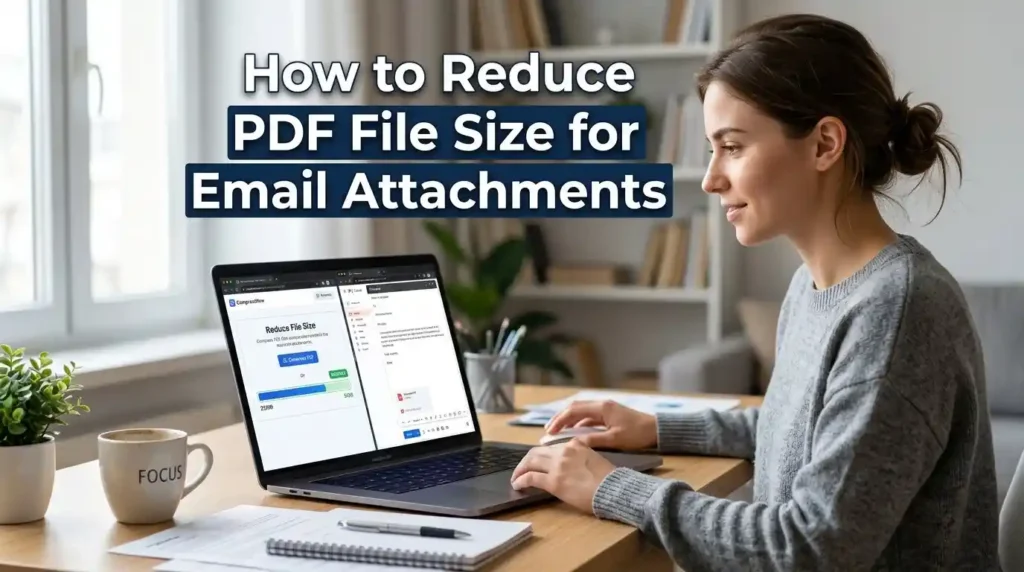
You just finished creating an important document — a job application, a business proposal, or a scanned report — and then it happens. Gmail shows the dreaded message: “File too large to send.” Sound familiar? You are not alone.
Every day, millions of people struggle to compress PDF for email because PDFs can balloon in size, especially when they contain high-resolution images, embedded fonts, or scanned pages. The good news is that you can reduce PDF file size without losing quality using free, fast, and easy methods available right now.
In this comprehensive guide, you will learn exactly how to make a PDF smaller for email — whether you are on Windows, Mac, iPhone, or Android — using both online tools and desktop software. We also cover why PDFs get so large in the first place, which tools are safest, and the smartest ways to cut down that file size before hitting send.
Whether you need to compress a large PDF file down to under 1MB or just shave off a few megabytes, this guide has every answer you need. Let us get started.
Why Is My PDF File Too Large to Email?
Before jumping into solutions, it helps to understand the problem. PDFs can become surprisingly large for a handful of reasons, and knowing the cause helps you pick the right fix.
The most common culprit is high-resolution images embedded inside the PDF. When you scan a document using a phone or scanner app, it often captures images at 300 DPI or higher — perfect for printing, but enormous for emailing. Each image adds megabytes to the file.
Another common cause is embedded fonts. When a PDF embeds every character of a custom font, it carries a lot of extra data. Similarly, PDFs created from PowerPoint presentations often include vector graphics and color layers that add significant weight.
Finally, unoptimized PDF structure can cause bloat. Redundant metadata, duplicate objects, and outdated compression algorithms from older software all contribute to an unnecessarily large file. The result? A PDF that exceeds email attachment size limits for Gmail (25MB), Outlook (20MB), and Yahoo Mail (25MB).
How to Reduce PDF File Size: 6 Proven Methods
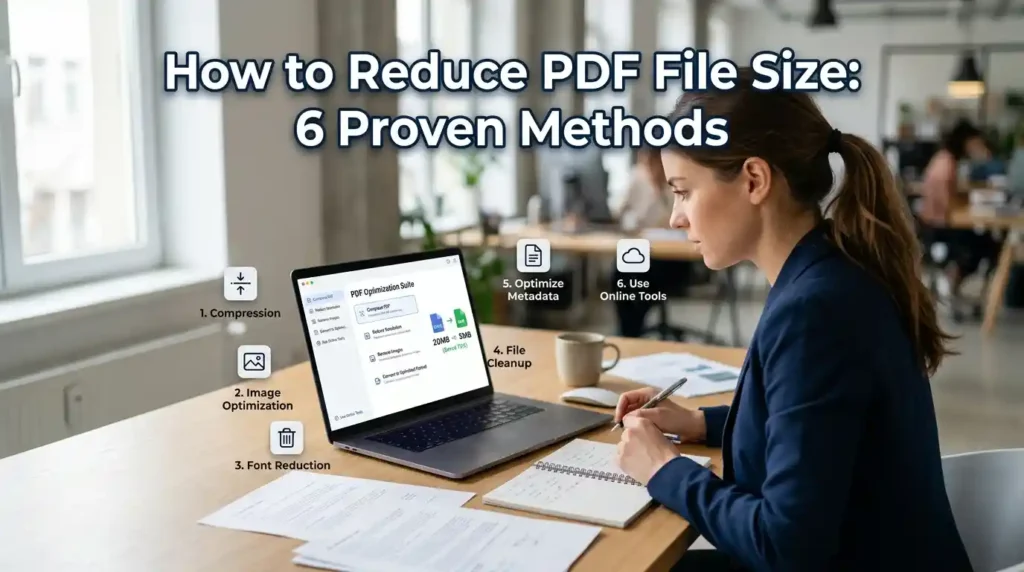
Method 1: Use a Free Online PDF Compressor (Fastest Option)
The easiest way to compress PDF online is to use a browser-based tool. No installation needed, and it works on any device. One of the best free tools available is the MegaFreeTools PDF Compressor — a secure, fast, and completely free PDF compression tool that works right in your browser.
Step-by-step guide:
- Visit MegaFreeTools PDF Compressor in any browser.
- Click “Upload PDF” and select your large PDF file.
- Choose your compression level (low, medium, or high).
- Click “Compress PDF” and wait a few seconds.
- Download your compressed, smaller PDF and attach it to your email.
That is it. In most cases, this method can reduce PDF file size by 50–80% without any noticeable drop in quality. MegaFreeTools also offers related tools like the Image Compressor and Image Resizer if you need to compress images separately before embedding them.
For users looking for another trusted resource for online file tools, Toolify Worlds is a reliable platform worth bookmarking.
Method 2: Reduce PDF File Size on Mac (Built-In Method)
Mac users have a secret weapon: the built-in Preview app. You do not need any third-party software to shrink PDF file size on Mac.
Steps to reduce PDF size on Mac using Preview:
- Open your PDF in Preview (double-click the file).
- Click File → Export as PDF.
- In the Quartz Filter dropdown, select “Reduce File Size.”
- Save the file with a new name.
This method works well for most PDFs. However, for scanned documents, the online PDF Compressor at MegaFreeTools often achieves better results.
Method 3: Compress PDF on Windows (Without Software)
Windows does not have a native PDF compressor, but you can use Microsoft Word or a free online tool. If your PDF was originally a Word document, try this:
- Convert your PDF to Word using the PDF to Word converter.
- Open it in Microsoft Word.
- Compress images within Word (Picture Tools → Compress Pictures).
- Save as PDF again (File → Save As → PDF) and choose “Minimum size” option.
Alternatively, you can use the Word to PDF tool at MegaFreeTools to re-export your document in a lightweight format. The MegaFreeTools tools library has everything you need for document management without installing software.
Method 4: How to Compress PDF on iPhone or Android (Mobile Methods)
Need to compress PDF for email on mobile? It is absolutely possible without a computer.
On iPhone (iOS):
Open Safari and visit MegaFreeTools PDF Compressor. The site is fully mobile-friendly. Upload your PDF from Files, compress it, and download the smaller version. Then share it directly via Mail or WhatsApp.
On Android:
Open Chrome, go to megafreetools.com/pdf-compressor, and follow the same steps. You can upload a PDF from Google Drive or your local storage. The compressed file will be ready to download and email in seconds.
This approach lets you compress PDF for WhatsApp and email right from your phone without downloading any apps. If your original document is an image, you can also use the JPG to PDF converter or PNG to PDF tool to create lightweight PDFs from the start.
Method 5: Reduce Scanned PDF File Size Under 1MB
Scanned PDFs are typically the heaviest files because each page is saved as a high-resolution image. Here is how to reduce scanned PDF size under 1MB:
- Use MegaFreeTools PDF Compressor: Upload your scanned PDF and select the “High Compression” option. The tool applies DPI reduction and image optimization automatically.
- Split the PDF first: If your document is multi-page, try the Split PDF tool to break it into smaller sections before compressing each part.
- Convert images separately: Use the Image Compressor to reduce image file sizes before creating the PDF.
With the right approach, even a 10MB scanned document can be reduced to under 1MB without losing readability.
Method 6: Use Adobe Acrobat to Compress PDF
If you have access to Adobe Acrobat Pro, it offers one of the most powerful PDF optimization techniques available.
Steps:
- Open your PDF in Adobe Acrobat Pro.
- Go to File → Reduce File Size or File → Save as Other → Optimized PDF.
- Customize settings: reduce image resolution, remove embedded fonts, clear metadata.
- Save the optimized file.
Adobe Acrobat is great for professional results, but it requires a paid subscription. For most users, the free MegaFreeTools PDF Compressor delivers comparable results without any cost or login. You can explore the full suite of free tools at megafreetools.com/tools.
Best Free PDF Compressor Tools: Quick Comparison
Not all PDF compressors are equal. Here is a quick breakdown of the top options:
| Tool | Free? | No Login? | Mobile Friendly? |
| MegaFreeTools | ✅ Yes | ✅ Yes | ✅ Yes |
| Smallpdf | ⚠️ Limited | ❌ No | ✅ Yes |
| iLovePDF | ⚠️ Limited | ❌ No | ✅ Yes |
| Adobe Acrobat Online | ⚠️ Limited | ❌ No | ✅ Yes |
| Mac Preview | ✅ Yes | ✅ N/A | ❌ No |
For a completely free, no-signup, mobile-friendly experience, MegaFreeTools is the clear winner. You can also check out Baco Consultants for professional document and digital services.
Lossless vs Lossy PDF Compression: What Is the Difference?
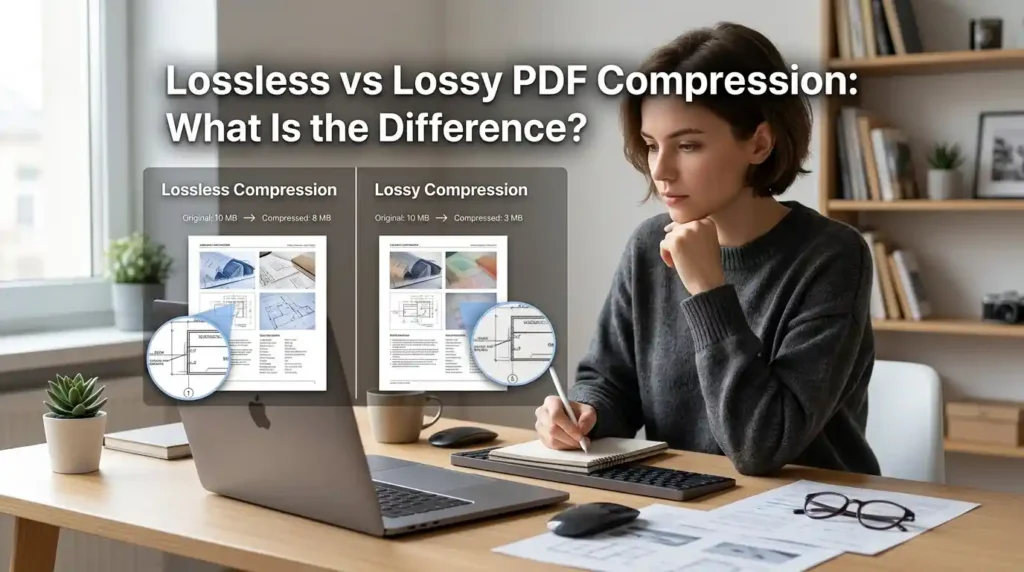
Understanding compression types helps you choose the right setting for your needs.
Lossless compression reduces file size by reorganizing data more efficiently, without removing any content. The PDF looks exactly the same before and after compression. This is ideal for text-heavy documents, contracts, and reports where every detail matters.
Lossy compression achieves much greater size reductions by slightly reducing image quality, lowering DPI, or removing metadata. The difference is usually invisible on screen, but images may appear slightly softer when printed at large sizes. This method is perfect for compressing large PDF files for email where visual sharpness is not critical.
Most online PDF compressors, including the MegaFreeTools PDF Compressor, let you choose between compression levels so you control the balance between file size and quality.
Is It Safe to Use Online PDF Compressors?
This is a common concern, and a smart one. When you upload a sensitive document to an online tool, you want to know it is protected.
Reputable tools use HTTPS encryption during upload and automatically delete your files after processing (usually within 1–2 hours). MegaFreeTools is a trusted platform that does not store your documents permanently. If you need more information about the service, visit the About Us page or reach out via the Contact Us page.
For highly confidential documents such as legal contracts or medical records, consider using offline tools like Adobe Acrobat or Mac’s Preview app, which keep your files entirely on your device.
In general, for everyday documents — resumes, invoices, reports — online PDF compressors are safe and reliable when used on reputable platforms.
Pro Tips to Prevent Large PDF Files Before They Happen
The best PDF optimization happens before the file is even created. Here are smart habits that keep your PDFs lean from the start:
- Resize images before embedding: Use the Image Resizer to reduce image dimensions before adding them to a document.
- Convert from the right format: When creating a PDF from Word, use “Minimum size” in the export settings.
- Use efficient file formats: Convert images to PNG using the JPG to PNG converter before embedding if they use transparency.
- Merge and split wisely: Use the Merge PDF tool to combine files and Split PDF to separate them when emailing individual pages.
- Remove watermarks: Unnecessary watermarks add data. Try the Watermark Remover tool before compressing.
Other Free Tools That Help You Manage Documents Smarter
While you are working with PDFs and files, MegaFreeTools offers a full suite of tools that make document management simple:
- PDF to JPG Converter – Extract images from any PDF
- JPG to PDF Converter – Turn photos into compact PDFs
- PNG to JPG Converter – Reduce image file sizes before creating PDFs
- Text to PDF – Create lightweight PDFs from plain text
- QR Code Generator – Share documents via QR instead of email attachments
- Word Counter – Track document length before exporting
- Online Notepad – Draft content before converting to PDF
- Password Generator – Protect your compressed PDF with a secure password
- Background Remover – Clean up scanned images before converting to PDF
- Color Picker – Check color values when preparing image-heavy documents
- Case Converter – Format text properly before creating a PDF
- JSON Validator – Useful for developers handling data-driven documents
Explore the full list of tools at megafreetools.com/tools or check out our services page for professional options.
Frequently Asked Questions (FAQ)
How do I reduce PDF file size for email?
The fastest way is to use a free online PDF compressor like MegaFreeTools PDF Compressor. Upload your PDF, select a compression level, and download the smaller version. Most files can be reduced by 50–80% in under 30 seconds.
What is the best free PDF compressor?
MegaFreeTools is widely considered the best free PDF compressor because it requires no signup, works on all devices, and delivers strong compression results without compromising quality. It is completely free and browser-based.
How can I compress PDF without losing quality?
Choose the “Low” or “Medium” compression setting in any good PDF compressor. These settings use lossless compression or minimal lossy compression that is virtually invisible to the naked eye. Text quality is always preserved.
Why is my PDF file too large to email?
Your PDF is likely large because it contains high-resolution images, embedded fonts, or scanned pages. Scanned PDFs are especially heavy because each page is stored as a full image. Compressing with MegaFreeTools can easily fix this.
How do I reduce PDF size on mobile?
Open a mobile browser (Safari or Chrome), visit MegaFreeTools PDF Compressor, and upload your PDF from your phone. The tool works fully on mobile without any app installation required.
Can I compress PDF without software?
Yes. Browser-based tools like MegaFreeTools PDF Compressor require absolutely no software installation. You just need an internet connection and a browser.
What is the safest way to reduce PDF size online?
Use a reputable platform like MegaFreeTools that uses HTTPS encryption and automatically deletes your files after processing. Avoid obscure, unreviewed tools for sensitive documents. For top-secret files, use offline tools instead.
How much can I reduce a PDF file size?
Depending on the original file content, you can typically reduce PDF size by 30–85%. Image-heavy and scanned PDFs see the greatest reductions. Text-only PDFs may see smaller gains since they are already relatively lightweight.
Conclusion: Send That Email Without the Frustration
Now you know exactly how to reduce PDF file size for email — whether you are on a Mac, Windows PC, iPhone, or Android. The process is fast, free, and does not require any technical knowledge.
The simplest solution for most people is to use the MegaFreeTools PDF Compressor — a free, secure, browser-based tool that compresses your PDF in seconds. No sign-up, no fees, no hassle.
Beyond compression, MegaFreeTools gives you a complete toolkit for managing PDFs and images — from converting Word files to PDF, to removing backgrounds from images, to merging PDF files into one clean document. It is the only tool you need.
Stop letting large file sizes hold up your workflow. Compress, send, and move on. If you have questions or need personalized assistance, feel free to visit the Contact Us page.
────────────────────────────────────────────────────────────────────────────────
External Resources: Toolify Worlds | Baco Consultants