
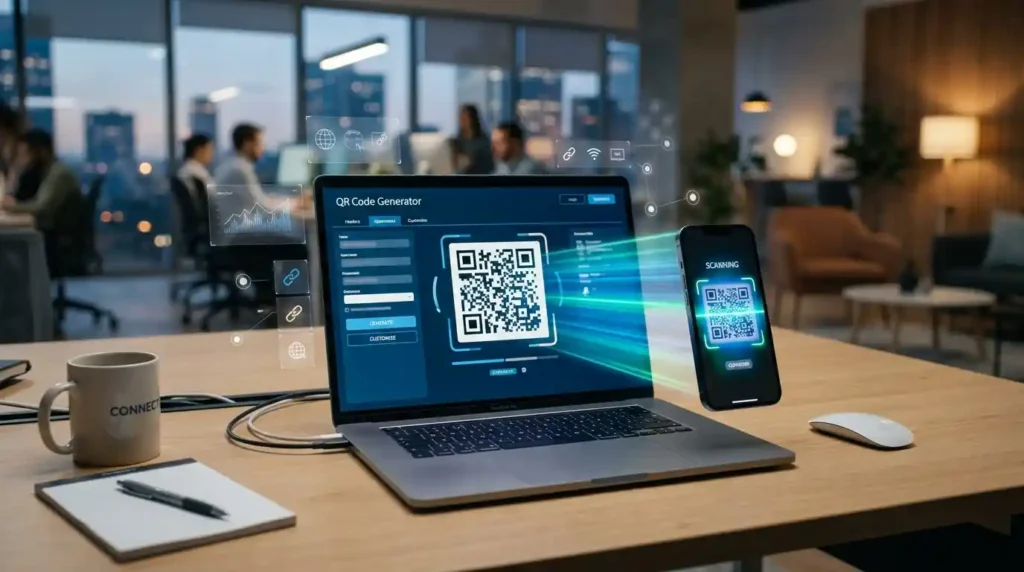
To create a QR code for a website, paste your URL into a free QR code generator, customize the design if needed, then download the image. The entire process takes under 60 seconds. Tools like the MegaFreeTools QR Code Generator require no account and produce a scannable, high-resolution QR image instantly.
Why Your Website Needs a QR Code Right Now
Every business card, flyer, product label, and storefront display is a missed traffic opportunity — unless it has a QR code. Visitors should never have to type a URL manually. A single scan bridges the gap between your physical presence and your digital one.
→ Generate your website QR code for free at MegaFreeTools.com
The problem: most QR generators bury the free option behind sign-ups, paywalls, or watermarks. MegaFreeTools solves this by offering a completely free, no-login QR code generator that produces clean, high-resolution codes you can download and use immediately.
What Is a QR Code for a Website?

A QR (Quick Response) code is a two-dimensional barcode that encodes information — in this case, a URL — into a scannable image. When a smartphone camera reads it, the device opens the encoded web address directly in a browser.
QR codes were invented in 1994 by Denso Wave (a Toyota subsidiary) for tracking automotive parts. Today, they are a global standard governed by ISO/IEC 18004 and are natively readable by every major smartphone camera — no separate app required on iOS (since 2017) or Android (since 2018).
Think of a QR code as a visual hyperlink — the offline equivalent of clicking a link.
Static vs Dynamic QR Codes: Which Should You Use?
Before you generate a QR code, you need to understand the two core types.
| Feature | Static QR Code | Dynamic QR Code |
|---|---|---|
| URL encoded | Directly in the code | Via a redirect URL |
| Can be edited later | ❌ No | ✅ Yes |
| Requires subscription | ❌ No | Usually yes |
| Scan analytics | ❌ No | ✅ Yes |
| File size | Larger (more data) | Smaller (short redirect) |
| Best for | Permanent links | Campaigns, A/B testing |
| Free options | ✅ Widely available | Limited |
For most users — personal portfolios, restaurant menus, business cards, event flyers — a static QR code is the right choice. It’s free, permanent (as long as the URL stays live), and works forever without any subscription.
Dynamic codes are better suited for large-scale marketing campaigns where you need to swap URLs or track scan counts by location.
How to Create a QR Code for a Website: Step-by-Step

Follow these steps to generate a scannable QR code for any URL in under two minutes.
Step 1 — Copy Your Website URL
Open your website and copy the full URL from the browser address bar. Make sure it includes https:// — this matters for trust signals. Avoid shortening the URL unnecessarily; QR codes handle long URLs well.
If your page URL is very long, consider using a URL shortener first to keep the QR code pattern less dense and more scannable.
Step 2 — Open a Free QR Code Generator
Go to the MegaFreeTools QR Code Generator. No account, no sign-up, no watermark. The tool works directly in your browser.
You can also explore the full suite of free productivity tools at MegaFreeTools.com/tools/ — from image converters to text utilities.
Step 3 — Paste Your URL
Paste your website URL into the input field. The generator will immediately begin creating your QR matrix. Double-check that the URL is correct — a static QR code cannot be edited after generation.
Step 4 — Customize (Optional but Recommended)
Many generators let you:
- Change the foreground color to match your brand (use the Color Picker Tool to find the exact hex code)
- Add a logo in the center of the QR pattern
- Choose shape styles for the data modules (squares, dots, rounded)
- Set error correction level — use Level H (30% redundancy) if you’re adding a logo, so the code stays scannable even with part of it obscured
Rule from QR standard ISO 18004: The minimum quiet zone (white border) around a QR code must be 4 module widths. Never crop this border or the code may fail to scan.
Step 5 — Download in the Right Format
Choose your format based on use case:
- PNG — for digital use (email, social media, websites). Use the PNG to JPG converter if you need a JPEG version.
- SVG — for print (scales infinitely without pixelation). Ideal for banners, posters, and large-format printing.
- PDF — for direct insertion into documents. You can also use the JPG to PDF converter to embed a downloaded QR image into a PDF document.
Download at the highest resolution available. A minimum of 300 DPI is required for print.
Step 6 — Test Before You Publish
Scan the downloaded QR code with at least two devices (iPhone and Android) before printing or publishing. Use your phone’s native camera app, not a third-party scanner. Test from different distances and lighting conditions.
If the code fails to scan, it is usually because the contrast is too low or the quiet zone has been removed.
How to Use Your QR Code Effectively

Generating the code is only half the job. Placement and context determine whether it actually drives traffic.
Best Practices for QR Code Placement
- Always add a call to action near the code. “Scan to visit our site” dramatically increases scan rates compared to a bare code. Nobody knows what a QR code links to without context.
- Minimum print size: 2 × 2 cm (0.8 × 0.8 inches). Smaller codes fail to scan at arm’s length.
- Avoid placing codes on reflective or curved surfaces — glass windows and cylindrical product packaging can distort the scan.
- High contrast is non-negotiable. Dark modules on a white/light background. Never reverse this (white on dark) without testing thoroughly.
Where to Use QR Codes for Websites
- Business cards — link to your portfolio, LinkedIn profile, or personal site. Combine with the Resume Generator to create a complete professional kit.
- Product packaging — link to manuals, tutorials, or registration pages.
- Restaurant menus — link to a digital menu page. Update the page content anytime without reprinting the QR.
- Event signage and flyers — link to RSVP pages or event websites.
- Email signatures — link to your latest landing page or offer. Pair with the AI Caption Generator to write compelling copy for the surrounding content.
- Social media profiles — Instagram bios only allow one link; a QR code in your posts or stories can route people to specific pages.
Pros and Cons of Using QR Codes for Websites
| Pros | Cons |
|---|---|
| Zero friction — one scan opens any URL | Requires a smartphone with a camera |
| Works offline (printed materials) | Static codes can’t be updated after printing |
| Free to create with tools like MegaFreeTools | Users must know to scan (context/CTA needed) |
| No app required on modern smartphones | Poor design reduces scannability |
| Bridges physical and digital marketing | No built-in analytics for static codes |
| Supports long URLs without visible complexity | Damaged or dirty prints may not scan |
Common Mistakes to Avoid
These are the most frequent errors that result in broken or ineffective QR codes.
1. Using a low-resolution download for print. Always download SVG or a high-DPI PNG. A 200×200 pixel image printed on a banner will be blurry and unscannable.
2. Removing the quiet zone. The white border around the code is not decorative — it’s functionally required. Cropping it tightly inside a design causes scan failures.
3. Insufficient color contrast. Light gray modules on a white background, or multi-colored gradients, reduce scanner reliability. Stick to high-contrast combinations.
4. Not testing on multiple devices. A QR code that works on your iPhone may fail on an older Android. Always test on at least two different devices before print production.
5. Linking to a non-mobile-optimized page. Most QR scans happen on mobile. If your destination page isn’t responsive, the traffic bounces immediately. Google’s mobile-friendliness guidelines are the standard reference here.
6. Forgetting to check the URL after pasting. Autocorrect and browser extensions can silently modify URLs. Paste, then verify the URL character by character.
7. Using too many design customizations. Heavy logos, complex color gradients, and unusual module shapes all reduce error-correction capacity. If you must customize, set error correction to Level H.
QR Code Design Tips for Branding
A plain black-and-white QR code works, but a branded one stands out and builds trust.
- Match your primary brand color for the foreground modules. Use the Color Picker Tool to extract exact hex values from your logo.
- Add your logo to the center at no more than 30% of the total code area.
- Use rounded module shapes for a modern, premium feel — they scan just as reliably as squares.
- Keep the background white or very light — never use a background image behind a QR code.
- If you’re placing the code inside a designed document, the Watermark Remover can help clean up surrounding visuals, and the Image Compressor can reduce file size for web embedding.
Integrating QR Codes Into Your Workflow
QR codes are most powerful when they’re part of a broader digital strategy.
Content creators can use QR codes on YouTube thumbnails, podcast cover art, and press kits. Pair with the YouTube Tag Extractor to optimize the content you’re linking to, and the Keyword Density Checker to make sure your landing page is SEO-ready before you start printing and distributing QR codes at scale.
Educators and students linking to Google Forms, study resources, or course pages can combine QR codes with tools like the GPA Calculator and Age Calculator for a full academic toolkit.
Small businesses creating promotional materials can use the Word Counter to write concise copy and the Text to PDF tool to convert finished content into print-ready files — all without leaving the browser.
Technical Details: How QR Codes Work
For those who want to understand the technology, here’s a brief technical overview.
A QR code is a matrix of black and white squares (modules) arranged on a grid. The data capacity depends on the version (size of the grid, from 21×21 to 177×177 modules) and error correction level.
A website URL is encoded using byte mode encoding, which supports the full ASCII character set including https://. The encoded bitstream is then arranged into the QR matrix following the ISO/IEC 18004:2015 standard.
Modern smartphone cameras use image processing algorithms (standardized by makers like Apple’s Vision framework and Google ML Kit) to detect and decode QR patterns in real time without a dedicated app.
Error correction levels:
| Level | Data recovery | Best use |
|---|---|---|
| L (Low) | 7% | Clean digital displays |
| M (Medium) | 15% | General use |
| Q (Quartile) | 25% | Industrial environments |
| H (High) | 30% | Branded codes with logos |
Frequently Asked Questions
What is a QR code for a website? A QR code for a website is a scannable image that encodes a URL. When scanned with a smartphone camera, it instantly opens the encoded web address in the device’s browser — no typing required.
How do I create a QR code for my website for free? Go to the MegaFreeTools QR Code Generator, paste your URL, and download the generated image. No sign-up or payment is required.
Is a free QR code permanent? A static QR code generated for free works permanently as long as the URL it encodes remains live. The code itself does not expire — only the destination URL matters.
What is the difference between a static and dynamic QR code? A static QR code encodes the URL directly and cannot be changed. A dynamic QR code encodes a redirect link, so the destination URL can be updated later. Static codes are free; dynamic codes typically require a paid subscription.
Can I add a logo to my QR code? Yes. Most QR generators allow you to embed a logo in the center. To keep the code scannable, use High (H) error correction and ensure the logo covers no more than 30% of the code area.
What format should I download my QR code in? Download SVG for print materials (it scales infinitely) and PNG for digital use. Need a different format? Use the PNG to JPG or Image Resizer tools to convert.
How big should a QR code be for printing? The minimum recommended size is 2 × 2 cm (about 0.8 × 0.8 inches) for scanning at arm’s length. For posters and large signage, scale proportionally — there is no maximum size.
Why is my QR code not scanning? Common causes include: low contrast between modules and background, missing or cropped quiet zone (white border), too small a print size, physical damage or glare on the surface, or a broken destination URL. Test with multiple devices and verify the URL is live.
Do QR codes work without internet? The QR code itself requires no internet to scan — the camera reads the encoded data locally. However, if the code links to a website URL, the device needs an internet connection to load that page.
Can I track how many times my QR code is scanned? Static QR codes have no built-in tracking. To track scans, use a UTM parameter in the destination URL (e.g., ?utm_source=qr&utm_medium=print) and monitor traffic in Google Analytics. Dynamic QR codes from paid platforms include scan analytics.
Are QR codes safe? QR codes themselves are just encoded data — they’re as safe as the URL they contain. Be cautious of QR codes from unknown sources, as they could link to malicious sites (a practice known as “quishing”). Always ensure your own QR codes link to HTTPS URLs. Learn more in Mozilla’s web security guidelines.
Can I use QR codes for Instagram or social media? Yes. Platforms like Instagram allow QR codes in posts, stories, and printed promotional materials. Combine your QR code with compelling captions written using the AI Caption Generator for better engagement.
Expert Summary
QR codes are one of the simplest, highest-leverage tools for connecting offline audiences to online content. Whether you’re a freelancer adding a code to your business card, a restaurant owner replacing printed menus, or a marketer linking posters to landing pages, the process is the same: generate, test, and deploy. The key variables are contrast, quiet zone integrity, destination URL health, and print size. Get those right, and a QR code will reliably drive traffic for years — no subscription required.
The MegaFreeTools QR Code Generator gives you a production-ready, high-resolution code in seconds, completely free. It’s one of over 50 free tools available at MegaFreeTools.com/tools/ — covering everything from PDF tools like PDF to Word, Merge PDF, and PDF Compressor, to creative utilities like the Instagram Font Generator and Background Remover. No account needed for any of them.
→ Start creating your free QR code now at MegaFreeTools.com
Have questions or need a custom tool? Visit the MegaFreeTools Contact Page or learn more about the platform.
Top adult platforms provide premium content for mature audiences. Explore secure hubs for quality and privacy.
If intended stay is more than 30 days, the first 30 days is due at check-in, to receive a monthly rate.