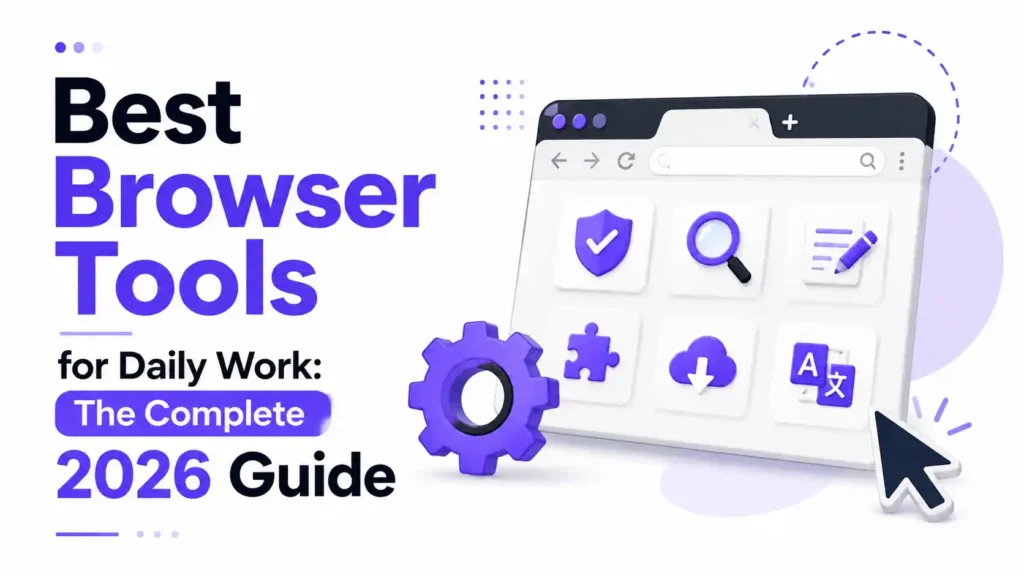
The best browser tools for daily work in 2026 combine productivity extensions, password managers, AI assistants, and free online utilities that handle tasks without installing extra software. Tools like Grammarly, Bitwarden, tab managers, and browser-based converters from hubs such as Mega Free Tools help professionals write, organize, secure, and convert files faster, right inside Chrome, Edge, or Firefox.
Key Takeaways
- Browser tools reduce repetitive tasks by handling writing, security, and file conversion directly in the tab you’re already using.
- A mix of extensions and free web-based utilities (like a PDF compressor or JSON validator) covers most daily work needs without paid software.
- Password managers such as Bitwarden and LastPass are now considered essential, not optional, for browser security.
- AI-powered browser assistants are becoming a core part of daily workflows, not just a novelty.
- Fewer, well-chosen extensions outperform a browser loaded with dozens of rarely used add-ons.
- Free browser-based tools for images, PDFs, and text (like an image compressor or word counter) remove the need for desktop software entirely.
- Manifest V3 has reshaped how Chrome extensions request permissions, affecting privacy and performance.
- Cross-browser compatibility (Chrome, Edge, Firefox, Safari, Brave) matters more as hybrid and remote work grows.
Expert Summary
Daily browser productivity in 2026 rests on three pillars: security (password managers, ad blockers), efficiency (writing assistants, tab managers, AI copilots), and utility (free web-based converters and generators). Professionals no longer need bloated desktop software for routine tasks — a well-curated browser setup, paired with free online tools for PDFs, images, and text, covers most workflows. The trend is toward lightweight, privacy-conscious, AI-assisted browsing rather than extension overload.
Introduction
If your workday lives inside a browser tab, the tools you choose to install and use directly shape how much you get done. Between emails, research, document editing, and quick file conversions, the modern browser has quietly become the most-used piece of software in most people’s jobs — more than any single desktop app.
The challenge isn’t finding browser tools; it’s finding the right ones. There are thousands of Chrome extensions, Edge add-ons, and Firefox plugins, and most people end up with a cluttered toolbar full of things they installed once and forgot about. This guide cuts through that noise and focuses on the browser productivity tools that genuinely save time for professionals, freelancers, students, and remote teams in 2026.
We’ll also cover free, no-install alternatives — because sometimes the fastest tool isn’t an extension at all, it’s a web-based tool you open, use, and close.
What Are Browser Tools, and Why Do They Matter?
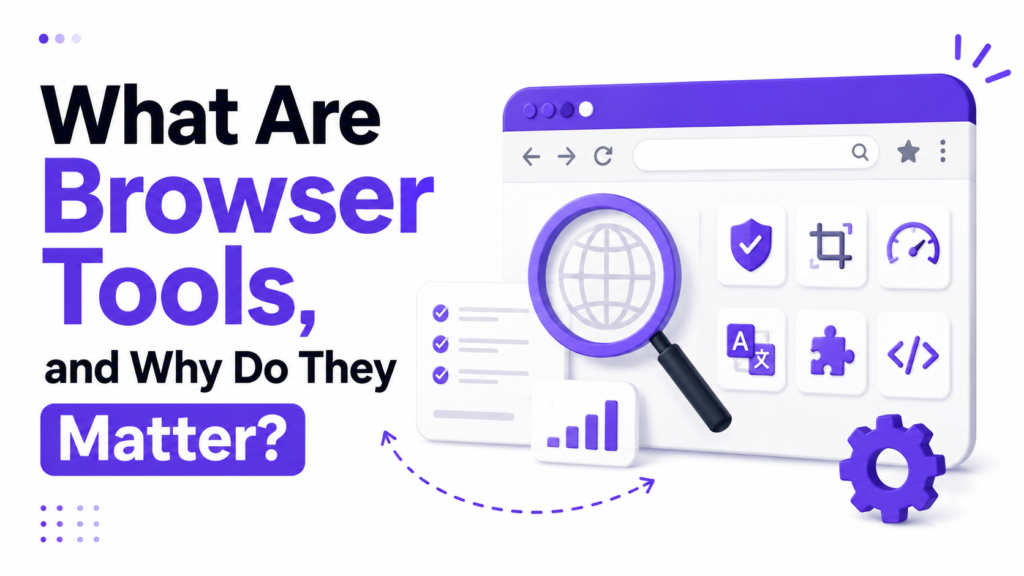
Browser tools are extensions, add-ons, or web-based utilities that extend what your browser can do beyond basic web browsing. They range from password managers and ad blockers to AI writing assistants and file converters that run entirely online.
They matter because so much of daily work now happens in the browser: writing emails, researching, managing tasks, editing documents, and converting files. A well-chosen set of browser tools removes friction from all of that — cutting down on app-switching, manual repetitive work, and time lost to disorganized tabs.
How Browser Tools Work
Most extensions work by requesting specific browser permissions (reading page content, modifying pages, or accessing your clipboard) so they can inject features directly into your browsing session. Since Chrome’s move to Manifest V3, extensions request more limited, transparent permissions than before, which has improved both security and performance — though it changed how some ad blockers and automation tools operate.
Web-based tools, by contrast, don’t need installation or permissions at all. You visit the page, complete the task — like compressing a PDF or resizing an image — and the tool does the work server-side or in your browser’s memory, with nothing left behind.
Who Should Use Browser Tools?
Almost anyone who works online benefits, but they’re especially valuable for:
- Remote and hybrid workers juggling multiple platforms
- Freelancers who need lightweight, low-cost tools instead of expensive software suites
- Students researching and writing across many tabs
- Developers and marketers who need quick utilities without opening heavy desktop apps
- Small business owners who want free alternatives to paid productivity software
Essential Browser Tools for Daily Work
1. Password Managers
Security should be the foundation of any browser setup. Tools like Bitwarden and LastPass generate and store strong, unique passwords automatically, syncing across devices. If you’d rather generate a strong password on the spot without installing anything, Mega Free Tools’ password generator creates secure passwords instantly in your browser.
2. Writing and Grammar Assistants
Grammarly and similar AI writing tools check grammar, tone, and clarity as you type, across Gmail, Docs, Slack, and virtually anywhere else you write. For quick text cleanup, formatting, or drafting without an extension, an online Notepad works well for jotting notes that autosave in the browser.
3. Ad Blockers and Reading Tools
Extensions like uBlock Origin and Dark Reader reduce visual clutter and eye strain, especially useful for anyone reading and researching for long stretches.
4. Tab and Bookmark Managers
Tools such as OneTab and Toby consolidate dozens of open tabs into organized lists, solving the “tab overload” problem that slows browsers down and scatters focus.
5. AI Browser Assistants
AI-powered browser copilots are one of the fastest-growing categories in 2026, helping summarize pages, answer questions about what you’re reading, and even automate repetitive browsing tasks. These sit alongside traditional extensions rather than replacing them, giving users a conversational layer on top of regular browsing.
6. File and Document Utilities
Rather than installing desktop converters, many professionals now rely on browser-based tools for one-off file tasks:
- PDF Compressor — shrink large PDF files before emailing them
- Merge PDF — combine multiple PDFs into one document
- Split PDF — separate specific pages from a larger file
- Word to PDF and PDF to Word — convert between formats without Adobe software
- Text to PDF — turn plain notes into a shareable document
7. Image Tools for Everyday Work
Marketers, designers, and content creators frequently need quick image edits without opening Photoshop:
- Image Resizer — resize photos for web or social use
- Image Compressor — reduce file size while keeping quality
- Background Remover — strip backgrounds for product photos or headshots
- JPG to PNG and PNG to JPG — quick format conversions
- JPG to PDF and PNG to PDF — turn images into shareable PDFs
8. Developer and SEO Utilities
For developers and technical marketers, browser-based utilities remove the need for local software:
- JSON Validator — check JSON structure instantly
- Color Picker — grab hex codes directly from any webpage
- Case Converter — reformat text case for code or copy
- QR Code Generator — create QR codes for links or campaigns
- Word Counter — check content length for SEO or word-limit requirements
9. Watermark and PDF-to-Image Tools
Content teams often need quick file transformations:
- Watermark Remover for cleaning up scanned documents
- PDF to JPG for pulling images out of a PDF report
Best Free Browser Tools (2026)
If budget matters — and for freelancers, students, and small teams, it usually does — these free options cover almost every daily need:
| Category | Free Tool |
|---|---|
| Passwords | Bitwarden, Password Generator |
| Writing | Grammarly (free tier), Online Notepad |
| Ad blocking | uBlock Origin |
| Tab management | OneTab |
| PDFs | PDF Compressor, Merge PDF |
| Images | Image Compressor, JPG to PNG |
| Dev tools | JSON Validator |
For the full collection of free browser-based utilities in one place, the Mega Free Tools hub is a solid starting point — no installs, no sign-ups, just open and use.
Common Mistakes People Make With Browser Tools
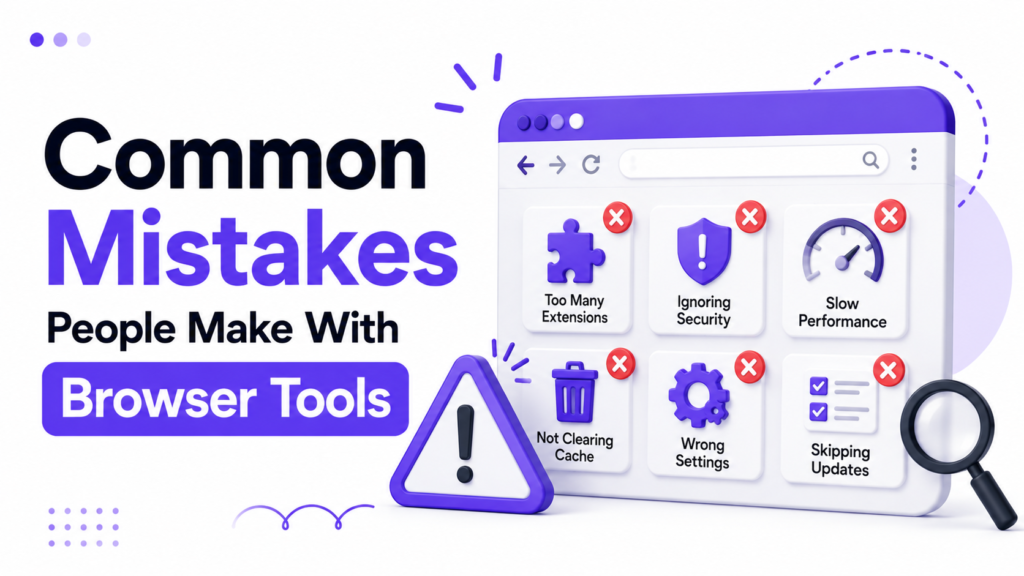
- Installing too many extensions. Every added extension is another permission request and potential performance hit. Stick to tools you use weekly, not ones you installed once.
- Ignoring permissions. Some extensions request far more access than their function requires — always check what a tool can read or modify before installing.
- Relying on unmaintained extensions. An abandoned extension can become a security risk if it’s no longer updated for new browser versions.
- Duplicating functionality. Running two password managers or three ad blockers at once causes conflicts and slows the browser down.
- Skipping browser-based alternatives. Many people install a desktop app for a task — like converting a PDF — that a free web tool could handle in seconds.
- Not syncing across devices. Failing to sign in and sync means losing saved passwords, bookmarks, or settings when switching computers.
Practical Examples
- A freelance writer uses Grammarly for drafting, Bitwarden for client logins, and the Word Counter to check article lengths before submission — all without leaving the browser.
- A small business owner compresses product photos with the Image Compressor, converts invoices from Word to PDF, and generates QR codes for packaging using free tools instead of paid software subscriptions.
- A remote team manages dozens of open research tabs with OneTab, then shares condensed lists with teammates instead of forwarding a messy list of links.
- A student converts lecture notes from text to PDF using Text to PDF and merges multiple handout PDFs into a single study file with Merge PDF.
Future Trends in Browser Tools
Browser productivity is shifting toward AI-native browsing, where assistants can summarize pages, answer questions about content, and automate multi-step tasks directly inside the browser rather than through separate apps. Expect to see:
- Deeper integration of AI copilots into mainstream browsers like Chrome and Edge
- Continued tightening of extension permissions for privacy (building on Manifest V3)
- More on-device, local AI processing to reduce data sent to external servers
- Growth in agentic browsing — tools that complete multi-step tasks (booking, form-filling, research) with minimal manual input
- Increased demand for lightweight, no-install web tools as an alternative to permission-heavy extensions
Frequently Asked Questions

What are browser tools? Browser tools are extensions, add-ons, or web-based utilities that add extra functionality to your browser, such as password management, grammar checking, ad blocking, or file conversion, without needing separate desktop software.
Are browser extensions safe to use? Most extensions from official stores like the Chrome Web Store are safe, but always check requested permissions and reviews first. Avoid extensions that ask for broad access they don’t need for their stated purpose.
Which browser tools improve productivity the most? Password managers, writing assistants, tab managers, and free file-conversion tools (PDF, image, and text utilities) tend to save the most time for everyday professional work.
How many browser extensions should I use? There’s no fixed number, but most people do best with 5–10 well-chosen extensions rather than dozens of rarely used add-ons, which can slow down browsing.
Do browser tools work across Chrome, Edge, and Firefox? Many popular tools, like Bitwarden and Grammarly, support all major browsers. Free web-based tools work on any browser since they don’t require installation at all.
Are free browser tools as good as paid ones? For many everyday tasks — password generation, PDF conversion, image resizing — free tools handle the job just as well as paid software, especially for occasional use.
What’s the difference between a browser extension and a web-based tool? An extension installs into your browser and runs continuously with certain permissions. A web-based tool is a website you visit only when needed, with nothing installed afterward.
Can AI browser assistants replace regular extensions? Not entirely. AI assistants are useful for summarizing and answering questions, but dedicated tools like password managers and PDF converters still serve specific, focused functions AI assistants don’t fully replace yet.
Is it safe to store passwords in a browser extension? Reputable password managers use strong encryption to protect stored credentials, making them significantly safer than reusing simple passwords across sites. Still, choose well-reviewed, actively maintained tools.
What browser tools are best for students? Grammar checkers, note-taking tools, PDF mergers, and text-to-PDF converters are especially useful for students managing notes, assignments, and research across multiple tabs.
Conclusion
The best browser tools for daily work in 2026 aren’t about installing everything available — they’re about choosing a focused set of extensions and free utilities that actually reduce friction in your day. A password manager, a writing assistant, a tab organizer, and a handful of reliable file-conversion tools cover the vast majority of what most professionals, students, and freelancers need.
Where possible, lean on free, no-install web tools for one-off tasks like compressing a PDF or resizing an image — it’s often faster than installing yet another extension.
Call to Action
Ready to simplify your daily browser workflow? Explore the full range of free utilities at the Mega Free Tools hub — from PDF and image converters to password generators and JSON validators — all free, all browser-based, no installs required. Have a specific workflow you want help optimizing? Get in touch or learn more about Mega Free Tools.