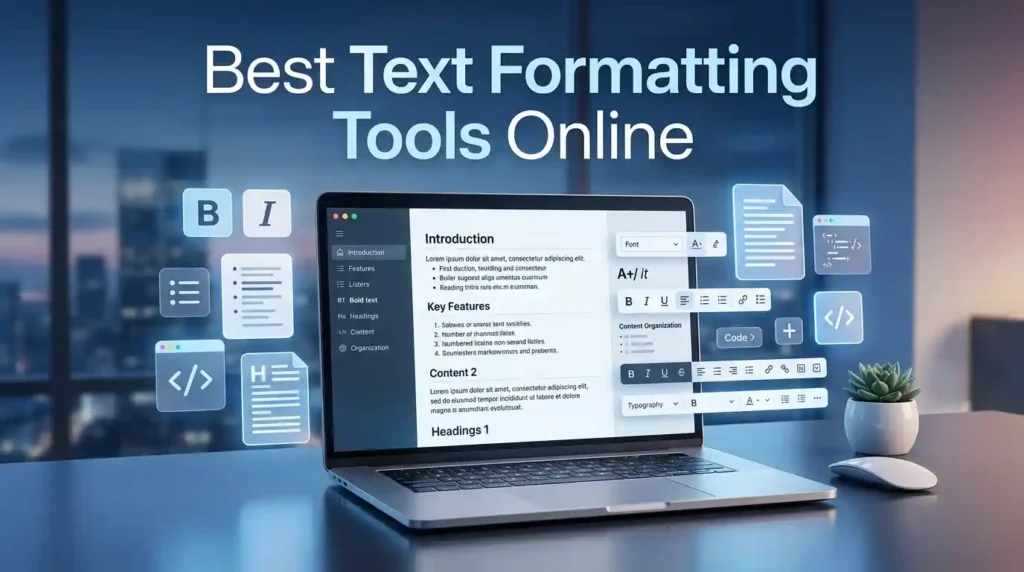
The best text formatting tools online let you instantly bold, italicize, convert text case, clean copied formatting, and transform plain text into styled, publish-ready content — directly in your browser. Top free options include MegaFreeTools.com, Google Docs, and dedicated utilities like case converters and rich text editors. No installation required.
Why Text Formatting Matters More Than You Think
Poorly formatted content costs you readers, rankings, and credibility. Whether you’re a blogger copying text from a PDF, a marketer drafting a social media bio, or a developer cleaning HTML output, messy formatting wastes time and kills readability.
Here’s the real problem: most people paste text from emails, web pages, or word processors — and invisible formatting tags come along for the ride. Hidden characters, broken line breaks, inconsistent capitalization, and non-standard fonts pile up silently, causing chaos when you publish.
The solution is a fast, free, browser-based text formatting tool.
Take action now: Use MegaFreeTools’ free text formatting tools instantly → No login. No download. Works on any device. Start formatting your text in seconds.
What Is a Text Formatting Tool?
A text formatting tool is a browser-based utility that transforms raw or messy text into clean, structured, styled content. It handles tasks like:
- Converting text to UPPERCASE, lowercase, Title Case, or Sentence case
- Removing hidden formatting characters from copied content
- Generating bold, italic, or decorative Unicode text for social media
- Converting plain text to HTML, Markdown, or PDF format
- Counting words, checking keyword density, and optimizing readability
These tools eliminate the need for bulky desktop software. According to Mozilla Web Docs, proper text encoding and formatting directly impact how browsers render and index your content — making these utilities essential, not optional.
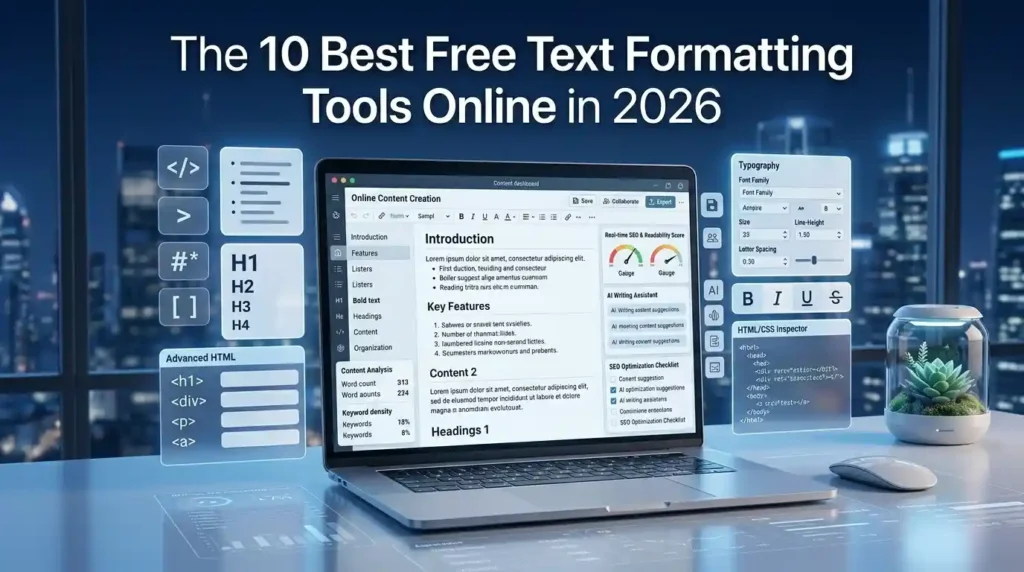
The 10 Best Free Text Formatting Tools Online in 2026
1. MegaFreeTools — Best All-in-One Free Tool Suite
MegaFreeTools.com is a comprehensive platform offering dozens of free browser-based utilities — no registration, no paywalls. It’s particularly strong for content creators who need multiple tools in one place.
Best features:
- Case Converter — Switch between UPPER, lower, Title, and Sentence case in one click
- Word Counter — Real-time word, character, sentence, and reading time stats
- Notepad Online — Clean distraction-free writing and editing environment
- Text to PDF — Instantly convert formatted text into a downloadable PDF
- Instagram Font Generator — Create styled Unicode text for bios and captions
Why it stands out: MegaFreeTools bundles formatting, conversion, SEO, image, and productivity tools under one roof — making it the most versatile free toolkit available in 2026.
2. Google Docs — Best for Collaborative Document Formatting
Google Docs remains the gold standard for cloud-based document editing with real-time collaboration. It supports rich text formatting, heading hierarchies, comment threads, and direct publishing to the web.
Best for: Teams, remote collaboration, long-form content creation.
Limitation: Requires a Google account; exported formatting can break in other editors.
3. Markdown Editors (StackEdit, Dillinger) — Best for Developers & Technical Writers
Markdown editors convert plain text written in Markdown syntax into clean HTML. Tools like StackEdit and Dillinger are browser-based and free, making them ideal for README files, documentation, and blog posts on platforms like Ghost or Hugo.
Best for: Developers, technical bloggers, documentation writers.
4. TinyMCE — Best Rich Text Editor for Web Apps
TinyMCE is a widely deployed WYSIWYG (What You See Is What You Get) rich text editor used by thousands of web applications globally. It supports toolbar formatting, image embedding, table creation, and plugin extensions.
Best for: Developers integrating a formatting editor into a web app or CMS.
5. CKEditor 5 — Best for Enterprise Content Formatting
CKEditor 5 offers a Document Editor mode that mirrors the experience of Microsoft Word — directly in the browser. It supports collaborative editing, real-time comments, and export to Word or PDF.
Best for: Enterprise content teams, collaborative authoring.
6. MegaFreeTools Case Converter — Best for Quick Text Transformation
The Case Converter tool at MegaFreeTools handles the most common text formatting task in seconds: changing capitalization. Paste any text and convert it to any case style — instantly.
Use cases: Fixing ALL-CAPS headlines, normalizing database text, preparing titles for blog posts or social media.
7. MegaFreeTools Keyword Density Checker — Best for SEO-Formatted Content
The Keyword Density Checker helps writers ensure their formatted content hits the right keyword balance. Over-optimization (keyword stuffing) is penalized by Google; this tool keeps you in the safe zone.
Use cases: Blog posts, landing pages, SEO-optimized articles.
8. MegaFreeTools Word Counter — Best for Writers on Deadlines
The Word Counter gives you instant metrics: word count, character count, sentence count, paragraph count, and estimated reading time. It’s one of the most-used tools for freelance writers, students, and content marketers.
9. MegaFreeTools AI Caption Generator — Best for Social Media Formatting
The AI Caption Generator takes your formatted text or content brief and returns polished, platform-ready captions for Instagram, Facebook, LinkedIn, and more. It removes the formatting guesswork from social media publishing.
10. MegaFreeTools JSON Validator — Best for Developer Text Formatting
For developers, malformed JSON is a formatting nightmare. The JSON Validator checks and formats JSON instantly, highlighting syntax errors and properly indenting nested objects.
How to Format Text Online: Step-by-Step Guide
Here’s a simple workflow for cleaning and formatting content using free tools:
Step 1: Paste your raw text Open MegaFreeTools Notepad Online and paste your unformatted text. This strips the invisible formatting layers that come from Word, PDFs, or web pages.
Step 2: Check your word count Use the Word Counter to verify your content length meets your target (e.g., 1,000 words for a blog post, 300 for a product description).
Step 3: Fix capitalization Run your title and headers through the Case Converter to ensure consistent Title Case or Sentence case styling.
Step 4: Optimize for SEO Paste your finalized text into the Keyword Density Checker to verify keyword frequency is appropriate — typically 1–2% for a primary keyword.
Step 5: Export to your target format
- For blogs and documents: use Text to PDF or Word to PDF
- For images: use PNG to PDF or JPG to PDF
- For compression: run your final file through the PDF Compressor
Step 6: Add styled text for social Use the Instagram Font Generator to generate Unicode-styled text for bios, captions, or usernames.
Pros & Cons: Online Text Formatting Tools vs. Desktop Software
| Feature | Online Text Formatting Tools | Desktop Software (MS Word, etc.) |
|---|---|---|
| Cost | Free (most tools) | Paid subscription typically required |
| Installation | None — browser-based | Required download and setup |
| Accessibility | Any device, any OS | Limited to licensed device |
| Speed | Instant results | Full app load time |
| Collaboration | Real-time (some tools) | Limited without cloud add-ons |
| Offline Access | Not available | Available |
| Advanced Formatting | Varies by tool | Comprehensive |
| SEO-Specific Tools | Yes (keyword density, word count) | No native SEO features |
| Format Conversion | Built-in (PDF, PNG, etc.) | Plugin/export dependent |
| Privacy | Varies (check privacy policy) | Local processing (more private) |
Verdict: For most writers, bloggers, and marketers, free online tools cover 90% of daily formatting needs. Desktop software is best reserved for long-form document creation with complex formatting requirements.
Common Text Formatting Mistakes to Avoid
1. Copying text directly from PDFs without cleaning PDFs carry hidden formatting codes. Always paste into a plain-text cleaner or Notepad Online first before reformatting.
2. Inconsistent heading hierarchy Using H3 before H2, or skipping heading levels, confuses both readers and search engines. Google’s Search Central documentation recommends a logical heading structure for better indexing.
3. Ignoring whitespace and line breaks Extra line breaks, tabs, and non-breaking spaces (common in copied content) cause publishing glitches. Use a dedicated text cleaner to strip these.
4. Keyword stuffing instead of formatting for readability Formatting should serve the reader first. Use the Keyword Density Checker to keep SEO balanced without sacrificing natural language flow.
5. Not converting images before embedding Images in the wrong format slow down pages. Use PNG to JPG, Image Resizer, or Image Compressor before embedding visuals in your documents or pages.
6. Forgetting to check QR codes and links If your formatted content includes QR codes, validate them with a QR Code Generator to ensure they link correctly before publishing.
7. Formatting for desktop, ignoring mobile According to W3C’s mobile accessibility guidelines, over 60% of content is consumed on mobile devices. Always preview your formatted content on a small screen.
8. Skipping PDF optimization Large PDF files hurt user experience. After converting content to PDF, run it through the PDF Compressor or Split PDF tool to reduce file size.
Text Formatting Tools for Specific Use Cases
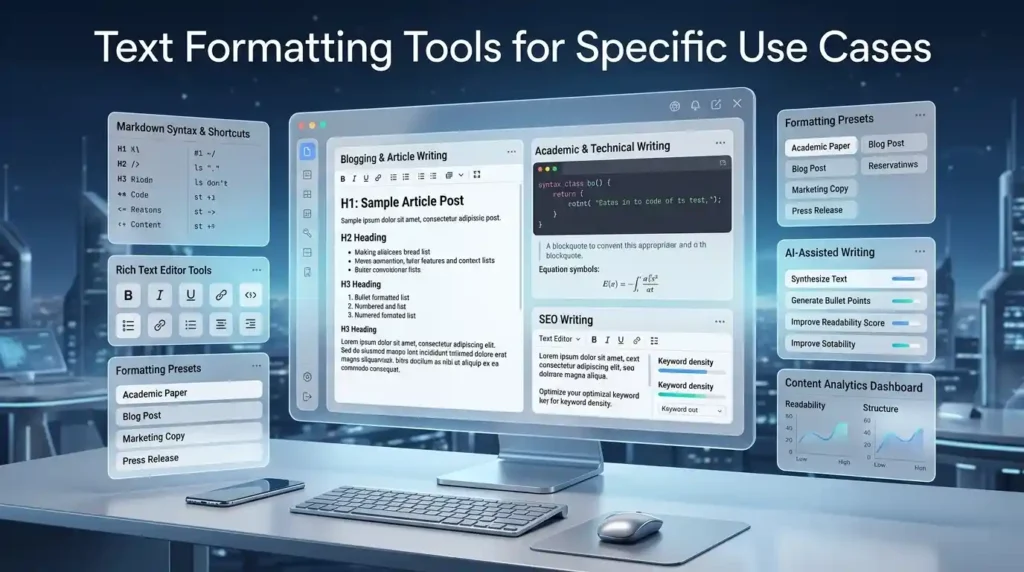
For Bloggers & Content Writers
- Word Counter — Hit your target word count every time
- AI Caption Generator — Generate social captions for your published posts
- Text to PDF — Export polished drafts as PDFs for client review
For Students & Academics
- Word Counter — Meet essay word limits precisely
- Resume Generator — Format your CV with professional structure
- GPA Calculator — A bonus utility for academic planning
- PDF to Word — Edit locked PDF documents from professors or institutions
For Designers & Developers
- Color Picker — Extract exact color codes from any design
- JSON Validator — Format and validate API responses
- Background Remover — Clean up images before embedding in formatted documents
- Watermark Remover — Remove watermarks from images used in content
For Social Media Managers
- Instagram Font Generator — Stand out in feeds with styled Unicode text
- AI Caption Generator — Format scroll-stopping captions in seconds
- Image Compressor — Optimize visuals for fast-loading social posts
- QR Code Generator — Create scannable QR codes for campaigns
For Business & Finance Professionals
- PDF to Word and Word to PDF — Format and convert contracts and reports
- Merge PDF — Combine multiple formatted documents into one
- Passwords Generator — Secure your formatted and shared files
- Loan Calculator — A financial utility alongside your formatting workflow
- Zakat Calculator — Additional resource for Pakistani users
Entity & Semantic Context: Industry Standards Referenced
The quality of text formatting is governed by widely accepted standards:
- W3C (World Wide Web Consortium) defines HTML and CSS formatting specifications that govern how text renders across browsers. See W3C Text Standards.
- Google Search Central recommends structured, semantically correct heading hierarchies for SEO. Clear H1 → H2 → H3 structures improve crawling and indexing.
- Mozilla Developer Network (MDN) provides authoritative references for text-level HTML elements (
<b>,<em>,<strong>,<mark>) and their semantic roles.
When you use quality online formatting tools, you’re aligning your content with these global standards — improving both user experience and search engine visibility.
FAQ: Best Text Formatting Tools Online
Q1: What is the best free text formatting tool online? MegaFreeTools.com offers the broadest free toolkit for text formatting, combining a case converter, word counter, notepad, text-to-PDF converter, and more — all in one place with no login required. Visit megafreetools.com/tools/ to browse all available tools.
Q2: How do I format text online for free? Go to MegaFreeTools.com, choose your formatting utility (case converter, word counter, notepad, etc.), paste your text, and get results instantly. No software installation or account is needed.
Q3: Can I remove formatting from copied text online? Yes. Paste your copied text into Notepad Online at MegaFreeTools — it strips invisible formatting and gives you clean, editable plain text.
Q4: What is the difference between a rich text editor and a plain text editor? A plain text editor stores only characters with no formatting data. A rich text editor (WYSIWYG) lets you apply bold, italic, headings, lists, and colors — and saves that styling as HTML or RTF. Both have valid use cases depending on your workflow.
Q5: Which text formatting tool is best for SEO content? The Keyword Density Checker and Word Counter at MegaFreeTools are purpose-built for SEO writers who need to balance readability with keyword optimization.
Q6: How do I convert plain text to PDF online? Use MegaFreeTools Text to PDF — paste your text, click convert, and download a formatted PDF instantly.
Q7: Can text formatting tools improve my content’s readability? Absolutely. Proper use of headings, bullet points, short paragraphs, and consistent styling significantly improves readability scores. Research from Nielsen Norman Group shows that structured text increases content comprehension by up to 58%.
Q8: Are online text formatting tools safe to use? Reputable tools like those at MegaFreeTools.com process your text locally in the browser or on secure servers without storing sensitive content. Always review the privacy policy of any tool you use for confidential material.
Q9: What formatting tool should I use for Instagram bios? The Instagram Font Generator at MegaFreeTools generates Unicode-styled fonts that display beautifully in Instagram bios, posts, and stories — without requiring any app download.
Q10: Can I format and compress PDF files online for free? Yes. MegaFreeTools offers a complete PDF workflow: PDF to Word, Word to PDF, Split PDF, Merge PDF, and PDF Compressor — all free and browser-based.
Q11: Which tool formats text for YouTube tags and video content? The YouTube Tag Extractor at MegaFreeTools helps video creators format and extract tags for better discoverability on YouTube.
Q12: Do text formatting tools work on mobile devices? Yes. All tools at MegaFreeTools.com are fully responsive and mobile-friendly, working seamlessly on Android and iOS browsers without any app installation.
Expert Summary
Text formatting is not a cosmetic task — it’s a core content strategy decision. Whether you’re publishing a blog post, preparing a PDF proposal, styling an Instagram bio, or cleaning up copied content, the tools you use directly impact how your content is read, ranked, and remembered. In 2026, there’s no reason to pay for formatting software or struggle with bloated desktop applications.
MegaFreeTools.com offers the most comprehensive free toolkit available, covering everything from case conversion and PDF workflows to image optimization and AI-powered captions. It’s trusted, fast, private, and genuinely free — making it the smart choice for writers, marketers, developers, and students alike.
Ready to Format Smarter?
Stop wasting time with messy, unstructured text. Explore the full library of 100% free formatting, conversion, SEO, and productivity tools at MegaFreeTools.com.
From a word counter to a QR code generator, from PDF compression to resume generation — every tool you need is one click away.
→ Browse All Free Tools at MegaFreeTools.com
Have questions or need a custom tool? Contact the MegaFreeTools team or learn more about the platform.
Last updated: June 2026 | Published on MegaFreeTools.com