If you’ve ever received a document you couldn’t edit, or sent a file that looked completely different on someone else’s screen, you already understand why PDF files exist. PDF — short for Portable Document Format — was designed to solve exactly that problem. It keeps your document looking identical on every device, every screen, and every printer, no matter what operating system or software the other person is using.
But for many beginners, working with PDF files feels confusing at first. How do you open one? Can you edit it? How do you create a PDF from scratch? What if the file is too large to share?
This complete beginner’s guide to PDF files answers all of those questions clearly and simply. Whether you’re a student, a professional, or someone just getting started with digital document handling, this guide will walk you through everything — step by step.
What Is a PDF File and Why Does It Matter?
A PDF file (Portable Document Format) is a universal file format developed by Adobe in the early 1990s. It was later standardized as an open ISO standard (ISO 32000), which means anyone can create tools to read or create PDFs without paying licensing fees.
Here’s why PDF became the world’s most trusted document format:
- It looks the same on Windows, Mac, Android, and iOS
- It preserves fonts, images, layouts, and colors exactly
- It’s widely accepted for official documents, contracts, and academic submissions
- It can be password-protected and encrypted for secure sharing
- It’s lightweight and easy to share online
According to Adobe, over 400 billion PDF files are opened annually worldwide. From school assignments to business contracts to government forms, PDF basics are now an essential life skill.
How to Open a PDF File
Opening a PDF is the very first step every beginner needs to master. The good news? It’s incredibly easy.
On a Computer (Windows or Mac):
- Most modern browsers (Chrome, Edge, Firefox) open PDFs automatically when you double-click them
- Adobe Acrobat Reader is the most popular free PDF reader software — download it from Adobe’s official site
- Microsoft Edge on Windows 11 has a built-in PDF viewer
On Mobile (Android or iOS):
- Android devices can open PDFs through Google Files or any PDF reader app
- iPhones open PDFs directly in the Files app or Safari browser
- Google Drive on mobile also opens PDF files instantly
Practical tip: If a PDF won’t open, it may be password-protected. You’ll need the password from whoever sent it. For locked PDF files, some tools also offer unlock features to help you regain access.
How to Create a PDF File
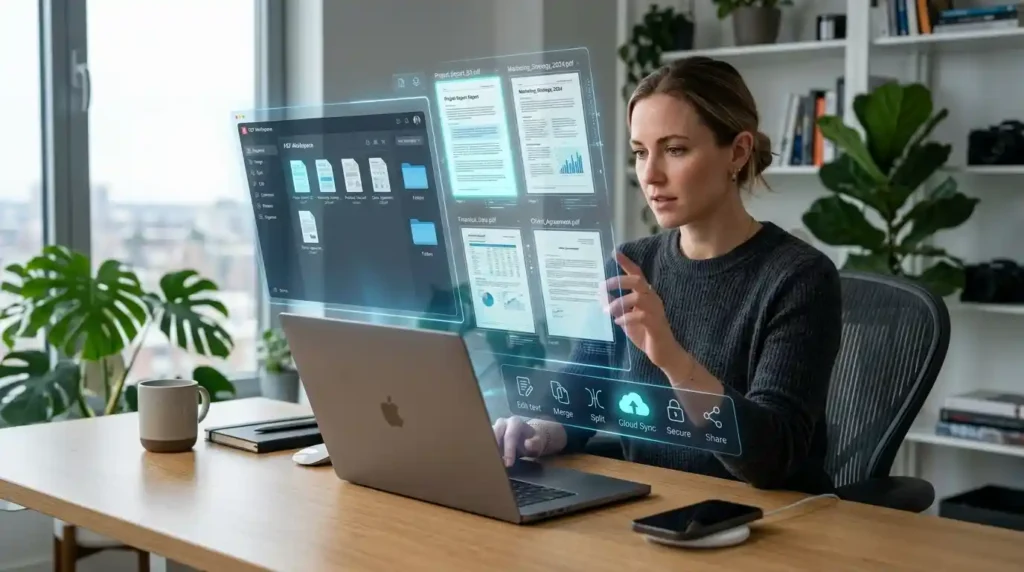
Creating a PDF doesn’t require any special software. Here are the easiest basic PDF operations for making one:
Method 1: From Microsoft Word
- Write your document in Microsoft Word
- Click File → Save As → PDF
- Done — your Word doc is now a PDF
You can also use the online Word to PDF converter at Mega Free Tools to convert any Word document into a PDF instantly, without installing software.
Method 2: From an Image If you have a JPG or PNG image you want to convert into a PDF:
- Use JPG to PDF for JPEG images
- Use PNG to PDF for PNG images
These tools are completely free and browser-based. Upload your image, click convert, and download your PDF in seconds.
Method 3: From Plain Text Have a note or text file you want to save as a PDF? Try the Text to PDF tool — paste your text, convert, and download. Perfect for students and writers who want a clean, shareable version of their notes.
How to Edit PDF Files
This is where many beginners get stuck. Unlike Word documents, PDFs are not naturally designed to be edited. They’re meant to be read, not rewritten. But editing PDF files is absolutely possible with the right tools.
What can you edit in a PDF?
- Text (add, change, or delete text)
- Images (insert or remove images)
- Pages (reorder, delete, or add pages)
- Annotations (highlight, underline, add comments)
- Form fields (fill in forms digitally)
Free online options for editing PDFs:
- Smallpdf and ILovePDF both offer basic PDF editing in the browser
- Google Docs can open and edit simple PDFs (go to Google Drive → right-click the PDF → Open with Google Docs)
- For heavier editing needs, Adobe Acrobat (paid) remains the industry gold standard
Pro Tip: If you just need to change text in a PDF, convert it to Word first using the PDF to Word converter at Mega Free Tools, make your edits in Word, and then convert it back to PDF. This is one of the smartest workflows for beginners who need to edit PDF files without purchasing expensive software.
How to Convert PDF Files
File conversion is one of the most common tasks in PDF file management. Here are the most useful conversions every beginner should know:
PDF to Word: Convert a PDF into an editable Word document using PDF to Word. Essential when you need to edit content that’s locked inside a PDF.
PDF to JPG: Need an image from a PDF? The PDF to JPG converter extracts each page as a high-quality image file.
Word to PDF: The reverse of the above — use Word to PDF to lock your document’s formatting before sharing.
JPG to PNG / PNG to JPG: Sometimes you need to convert images before inserting them into a PDF. Use JPG to PNG or PNG to JPG to prepare your image files first.
Image to PDF: Scan a physical document or photo and convert it to PDF using the JPG to PDF or PNG to PDF tools.
All of these are available free at Mega Free Tools — no installation, no account required.
How to Merge and Split PDF Files
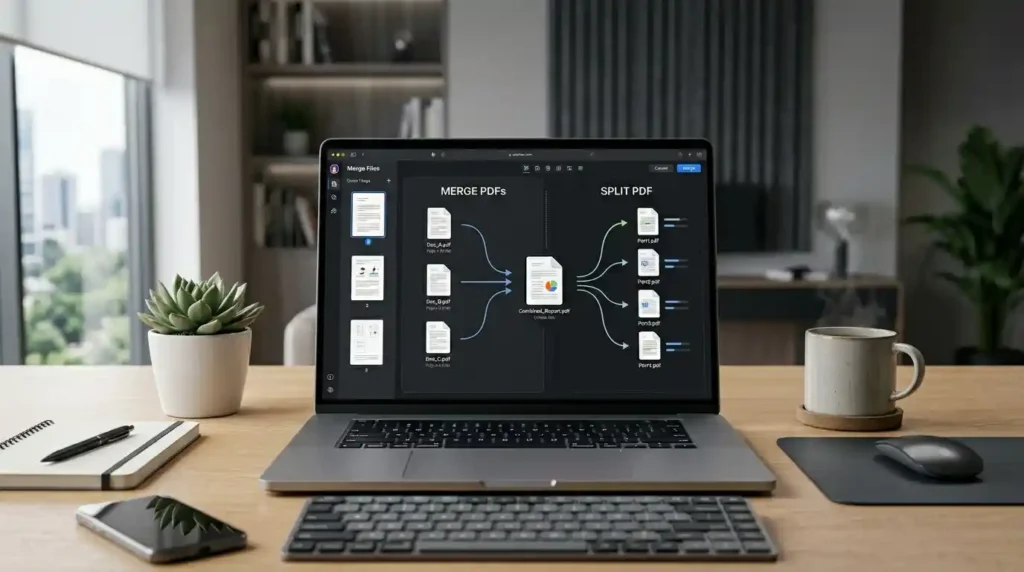
Once you’re comfortable with the PDF basics, you’ll quickly discover two more incredibly useful operations: merging PDFs and splitting PDFs.
How to Merge PDF Files
Combining PDF files means joining two or more separate PDFs into a single document. This is perfect for:
- Combining chapters of a report
- Merging multiple scanned pages into one file
- Joining invoices or receipts into a single document
Use the Merge PDF tool at Mega Free Tools to combine PDF files free — just upload your files, arrange them in order, and download the merged result.
How to Split PDF Files
Splitting does the opposite — it breaks one large PDF into smaller, separate files. Great for:
- Extracting specific pages from a report
- Separating chapters of an e-book
- Reducing file size by removing unnecessary pages
Use the Split PDF tool to select exactly which pages to keep or remove.
How to Compress and Reduce PDF File Size
One of the most common problems beginners face is large PDF file sizes. A PDF with many images can easily reach 50–100 MB, making it impossible to email or slow to upload.
How to reduce PDF file size:
- Go to Mega Free Tools PDF Compressor
- Upload your PDF
- Select your compression level
- Download the smaller version
This process can shrink a 50 MB PDF down to just a few megabytes — without visible quality loss. Compressed PDFs are easier to share PDF files online, attach to emails, and upload to cloud storage.
If your PDF contains heavy images, you can also compress those images first using the Image Compressor tool or resize them with the Image Resizer before creating the PDF.
Want to learn more about sharing your compressed PDFs easily? Read our detailed guide: How to Share PDF Files Easily Online.
Best PDF Tools for Beginners — Comparison Table
| Task | Recommended Tool | Free? |
|---|---|---|
| Open PDF | Adobe Acrobat Reader / Chrome | Yes |
| Create PDF from Word | Word to PDF – Mega Free Tools | Yes |
| Edit PDF | Google Docs / Smallpdf / ILovePDF | Yes (basic) |
| Convert PDF to Word | PDF to Word – Mega Free Tools | Yes |
| Convert PDF to JPG | PDF to JPG – Mega Free Tools | Yes |
| Merge PDFs | Merge PDF – Mega Free Tools | Yes |
| Split PDF | Split PDF – Mega Free Tools | Yes |
| Compress PDF | PDF Compressor – Mega Free Tools | Yes |
| Image to PDF | JPG to PDF – Mega Free Tools | Yes |
For a full library of free PDF tools, visit megafreetools.com/tools/.
Working with PDF Files on Mobile vs Desktop
Mobile Users (Android & iOS)
Working with PDF files on mobile has become just as easy as on desktop. Here’s what works best:
- Opening PDFs: Use Google Files (Android) or Files app (iOS) — both open PDFs natively
- Editing PDFs: Adobe Acrobat mobile app offers basic free editing features
- Creating PDFs: Use the camera scan feature in Google Drive or Microsoft Lens to scan documents directly to PDF
- Sharing PDFs: WhatsApp and Telegram both support PDF file sharing up to 100 MB
Desktop Users (Windows & Mac)
- Windows: Microsoft Edge and Chrome open PDFs by default. For editing, use Google Docs or a dedicated PDF editor
- Mac: Preview (built-in) opens and allows basic annotation of PDFs
- Both: All Mega Free Tools are browser-based and work perfectly on any desktop
Helpful Extra Tools for PDF Workflows
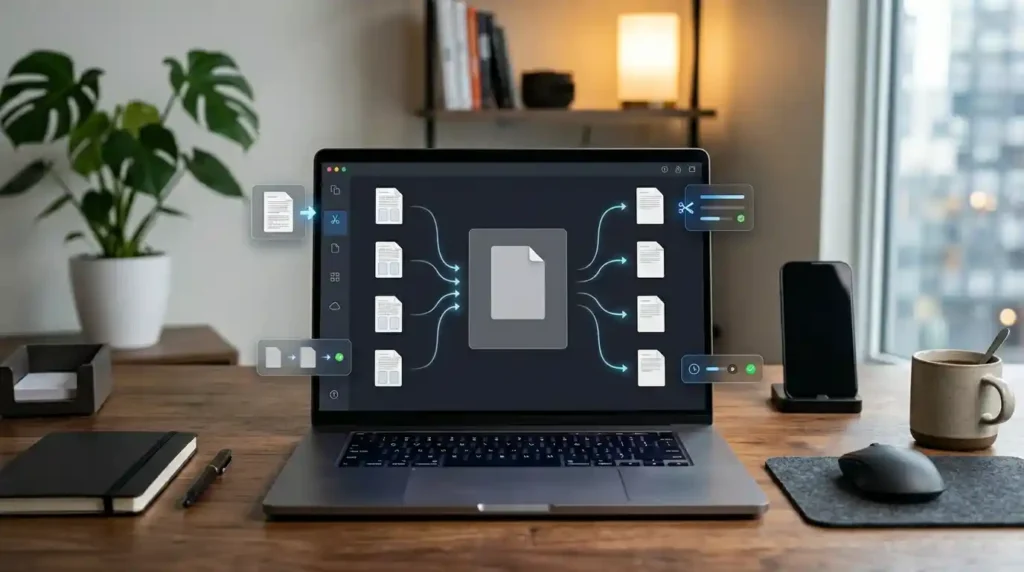
While working with PDFs, you’ll often need other tools alongside your main PDF operations. Here are some useful extras available free at Mega Free Tools:
- Online Notepad — Draft your text before converting to PDF
- Word Counter — Check document length before conversion
- QR Code Generator — Create a QR code that links to your shared PDF
- Watermark Remover — Clean up PDFs before sharing
- Background Remover — Remove backgrounds from images before inserting into PDFs
- Case Converter — Fix text formatting issues in document content
- Password Generator — Create strong passwords for password-protected PDFs
All of these tools are accessible from Mega Free Tools — a growing platform trusted by students and professionals across Pakistan, India, and beyond.
For additional document management and productivity resources, you can also explore Toolify Worlds and Baco Consultants for complementary tools and business solutions.
Why Choose Mega Free Tools for Your PDF Needs?
Mega Free Tools is built with one goal: to give everyone access to powerful document tools without paying a rupee. Whether you’re a student in Islamabad, a freelancer in Lahore, or a small business owner anywhere in Asia, you get the same fast, reliable, browser-based tools — completely free.
No installation. No account creation. No hidden fees.
Explore all available tools at megafreetools.com/tools/, learn about the platform at About Us, or reach out via the Contact page if you need assistance.
Frequently Asked Questions (FAQ)
What is a PDF file?
A PDF (Portable Document Format) is a universal document format that displays identically across all devices, operating systems, and printers. It was developed by Adobe and is now an open ISO standard used worldwide.
How do beginners use PDF files?
Beginners can start by simply opening PDF files in a web browser like Chrome, which has a built-in PDF viewer. From there, learning to create, convert, compress, and merge PDFs step by step is straightforward using free online tools.
How can I open a PDF file?
Open a PDF by double-clicking it on your computer — it will open in Chrome, Edge, or your default PDF reader. On mobile, tap the file in your Files or Downloads folder.
Can I edit PDF files easily?
Yes. For basic editing, open the PDF in Google Docs (via Google Drive) or use Smallpdf. For more control, convert it to Word using PDF to Word, edit it, then convert back to PDF.
What is the best PDF reader for beginners?
Adobe Acrobat Reader (free) is the most trusted option. For most everyday tasks, Google Chrome’s built-in PDF viewer works perfectly without downloading anything.
How do I create a PDF file?
The easiest way is to write your content in Microsoft Word and save it as a PDF (File → Save As → PDF). Alternatively, use the free Word to PDF tool at Mega Free Tools.
Is PDF easy to learn for beginners?
Absolutely. The PDF basics — opening, creating, sharing, and converting — can be mastered in one afternoon using free online tools. You don’t need any technical background.
How do I convert files into PDF?
Use the relevant converter tool. For Word documents, use Word to PDF. For images, use JPG to PDF or PNG to PDF. All available free at Mega Free Tools.
How do I merge multiple PDF files into one?
Upload your PDFs to the Merge PDF tool at Mega Free Tools, arrange them in order, and click merge. Your combined PDF downloads instantly.
How do I reduce PDF file size?
Use the PDF Compressor at Mega Free Tools. Upload your PDF, choose a compression level, and download a smaller version — usually ready in under 60 seconds.
Conclusion: You’re Ready to Work with PDF Files
Learning to work with PDF files doesn’t have to be overwhelming. Once you understand the PDF basics — opening, creating, editing, converting, merging, splitting, and compressing — you’ll handle any document task with confidence.
Here’s a quick recap of what every beginner should know:
- Open PDFs in any browser or with Adobe Acrobat Reader — it’s free
- Create PDFs from Word documents, images, or plain text using free converters
- Edit PDFs by converting to Word first, making changes, then converting back
- Merge multiple PDFs into one or split a large PDF into smaller parts
- Compress large PDFs before sharing to reduce file size dramatically
- Use all these tools free at Mega Free Tools — no software download needed
Start with one task today. Try converting a document using Word to PDF or compress an existing file with the PDF Compressor. Once you see how fast and easy it is, you’ll wonder how you ever managed without these tools.
Explore the full suite of free tools at Mega Free Tools and take full control of your digital document handling — starting right now.
Have questions or need help with a specific PDF task? Contact Mega Free Tools — we’re happy to help.