You’ve just finished writing an important business proposal in Notepad, or maybe you have a plain .txt file full of meeting notes that a client needs in a professional format. The problem? Nobody wants to receive a raw text file. What they want — what everyone expects in 2026 — is a clean, shareable, universally readable PDF.
The good news is that converting a text file to PDF online takes less than a minute, costs nothing, and requires zero software installation. Whether you’re on a laptop in Islamabad, a tablet in Karachi, or your mobile phone anywhere in Pakistan or beyond, the process is simpler than most people realize.
This guide walks you through exactly how to do it — step by step — along with the best free tools, practical tips, and answers to every common question about TXT to PDF conversion.
Why Convert Text Files to PDF at All?
Before we get into the how, it’s worth understanding the why. Plain text files (.txt) are useful for writing and storing content, but they come with some real limitations when you need to share them professionally:
- No formatting preservation — Fonts, spacing, and layout can look completely different on another person’s device
- Not universally print-friendly — Text files don’t always print cleanly
- Unprofessional appearance — Clients and employers expect PDF, not Notepad files
- No password protection — TXT files offer zero document security
- Search engine and archiving issues — PDFs are indexed, stored, and shared more reliably
PDF (Portable Document Format) solves all of this. It locks your formatting in place, looks identical on every device, and is accepted by every business, government office, and platform worldwide. That’s exactly why the demand for a reliable text to PDF converter keeps growing every year.
Best Free Tools to Convert Text Files to PDF Online in 2026
You don’t need Adobe Acrobat or any paid software. Here are the most reliable options available right now:
1. Mega Free Tools — Text to PDF Converter
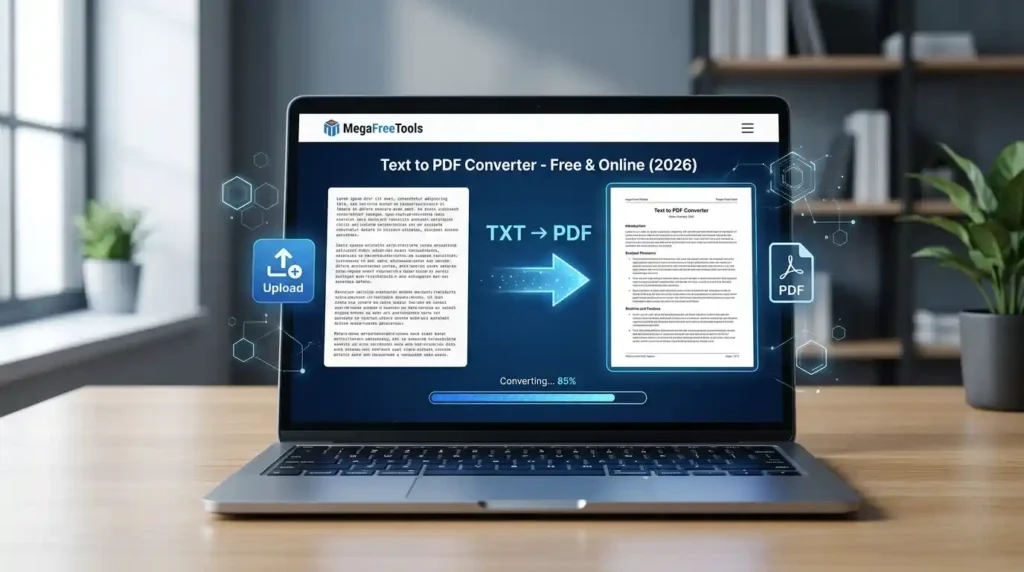
This is hands-down the fastest and most straightforward online text to PDF tool for everyday users. The Text to PDF converter at Mega Free Tools lets you:
- Paste or upload any text content directly
- Convert it to a clean PDF instantly
- Download without watermarks or hidden charges
- No login or account required
It works perfectly on both mobile and desktop browsers, making it ideal for freelancers, students, and small business owners across Pakistan, India, and the rest of Asia who need quick TXT to PDF conversion online.
Beyond text conversion, Mega Free Tools also offers a complete suite of free document and productivity tools — all in one place, all browser-based.
2. Google Docs (Free Method)
Google Docs is a surprisingly effective free text to PDF converter for those already in the Google ecosystem:
- Open Google Docs
- Paste your text or open a
.txtfile - Go to File → Download → PDF Document (.pdf)
- Done — your text is now a formatted PDF
This method works well but requires a Google account and internet connection.
3. Microsoft Word (Desktop Method)
If you have Microsoft Word installed:
- Open your
.txtfile in Word - Go to File → Save As → PDF
- Choose your save location and click Export
4. PDF24 Tools
PDF24 is a German-based free platform with strong privacy standards. It supports plain text to PDF conversion and is GDPR-compliant — useful for businesses handling sensitive documents.
5. Smallpdf and ILovePDF
Both platforms offer text and document to PDF conversion with clean interfaces. Their free tiers are slightly limited in daily usage, but they’re reliable for occasional conversions.
Comparison Table: Best Free Text to PDF Converters
| Tool | Online | No Signup | No Watermark | Mobile Friendly | Speed |
|---|---|---|---|---|---|
| Mega Free Tools | ✅ | ✅ | ✅ | ✅ | ⚡ Instant |
| Google Docs | ✅ | ❌ (needs account) | ✅ | ✅ | Fast |
| PDF24 | ✅ | ✅ | ✅ | ✅ | Fast |
| Smallpdf | ✅ | ✅ | ✅ (limited) | ✅ | Fast |
| Microsoft Word | ❌ (desktop) | ✅ | ✅ | ❌ | Fast |
Step-by-Step Guide: How to Convert a Text File to PDF Online
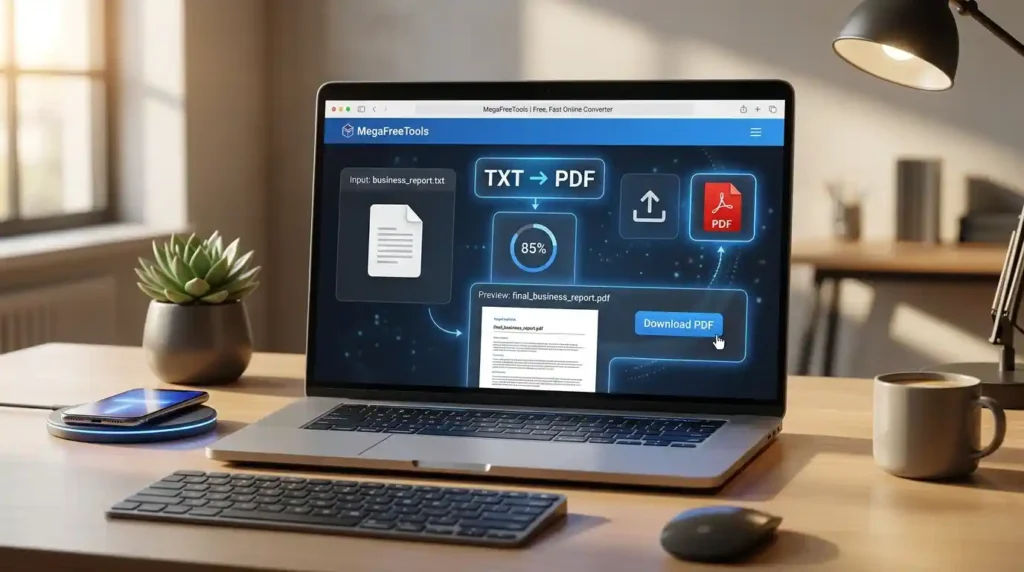
Here’s the simplest and fastest method using Mega Free Tools’ Text to PDF converter:
Step 1: Open your browser and go to megafreetools.com/text-to-pdf
Step 2: Either paste your text directly into the input field, or upload your .txt file
Step 3: Adjust any available formatting settings (font size, margins if applicable)
Step 4: Click the Convert or Generate PDF button
Step 5: Download your finished PDF file
The entire process takes under 60 seconds. No software. No account. No watermark. That’s it.
How to Convert a Notepad File to PDF (Windows & Mobile)
Notepad is one of the most widely used text editors in the world — especially among users in Pakistan, India, and other parts of South Asia who work with simple .txt documents daily.
On Windows PC (Without Software):
Method 1 — Print to PDF:
- Open your
.txtfile in Notepad - Press Ctrl + P to open the print dialog
- Select Microsoft Print to PDF as the printer
- Click Print and choose where to save the PDF
Method 2 — Online Converter:
- Visit megafreetools.com/text-to-pdf
- Upload or paste your Notepad content
- Download the PDF instantly
On Mobile (Android & iPhone):
- Copy your text from any notes app
- Open your browser and go to Mega Free Tools
- Use the Text to PDF tool — paste your content and convert
- Download the PDF directly to your phone
This is the easiest way to convert text to PDF on mobile without installing any app.
Does Formatting Stay the Same When You Convert Text to PDF?
This is one of the most common questions, and the honest answer depends on the method you use.
With a plain .txt file, there is very little formatting to preserve — no bold, no headers, no colors. What you’re really doing is placing the raw text into a PDF container with a readable font and basic margins.
For better formatting control:
- Write in Google Docs or Microsoft Word first, then export as PDF — this gives you full control over fonts, headings, spacing, and layout
- Use the Word to PDF converter at Mega Free Tools if you’ve drafted your document in Word format
- If you need to go the other direction and edit a PDF’s content, the PDF to Word converter makes that process seamless
For a completely plain text document being converted purely for sharing purposes, the output is clean and professional — just don’t expect headers and bold text to appear automatically from a .txt source.
How to Convert Multiple Text Files Into One PDF
Need to combine several .txt documents into a single PDF? Here’s the simplest workflow:
- Convert each text file to PDF individually using the Text to PDF tool
- Once you have multiple PDF files, use the Merge PDF tool at Mega Free Tools to combine them into one document
- Download the final merged PDF
This workflow is especially useful for:
- Compiling monthly reports from multiple notes files
- Combining client meeting notes into a single document
- Packaging multiple text-based documents for submission or archiving
Other Useful Document Conversion Tools at Mega Free Tools
Once you’re working with PDFs, you’ll likely need other conversion tools too. Here’s what’s available — all free:
- JPG to PDF — Convert image files into PDF documents
- PNG to PDF — Turn PNG screenshots or graphics into PDFs
- Word to PDF — Convert Word documents to PDF while preserving formatting
- PDF to Word — Extract editable content from any PDF
- PDF to JPG — Convert PDF pages into image files
- PDF Compressor — Reduce PDF file size for easy emailing
- Split PDF — Break large PDFs into individual pages or sections
- PNG to JPG — Convert between image formats instantly
And beyond PDF tools, Mega Free Tools also provides productivity utilities including an Online Notepad, Word Counter, Image Compressor, Image Resizer, QR Code Generator, Background Remover, Watermark Remover, Case Converter, Color Picker, JSON Validator, and a Password Generator — a genuinely complete free toolkit for everyday digital work.
Is Online Text to PDF Conversion Safe?
For most everyday documents — notes, reports, proposals, meeting summaries — online TXT to PDF conversion is completely safe. Here’s what responsible platforms do to protect your data:
- SSL encryption during file upload and download
- Automatic file deletion after conversion (usually within 1 hour)
- No storage or sharing of your document content
- No account required — meaning your data isn’t tied to a profile
For highly sensitive documents containing financial records, personal identification information, or legal contracts, consider using an offline method such as Microsoft Word’s built-in PDF export or the Windows “Print to PDF” feature.
For general business and personal use, Mega Free Tools is a safe, reliable, and fast option. Learn more about the platform on the About Us page or reach out via the Contact page.
Tips for Better PDF Output When Converting Text Files
A few practical habits that make a real difference:
- Clean up your text first — Remove extra blank lines, fix typos, and organize content before converting. What goes in is what comes out.
- Use headers in your source document — If you want sections in the PDF, draft in Google Docs or Word first, add headings, then convert.
- Check font readability — Most online converters use a clean default font. If your tool allows font selection, choose something professional like Georgia or Times New Roman for formal documents.
- Compress after conversion — Large PDFs can be trimmed down with the PDF Compressor before sharing via email.
- Name your files clearly — Before downloading, rename your output file to something descriptive (e.g.,
ProjectProposal_March2026.pdf) rather than the default name.
External Resources Worth Knowing
For deeper understanding of document formats and digital workflows, these resources are helpful:
- Toolify Worlds — A comprehensive directory of online tools and digital productivity resources for modern professionals
- Baco Consultants — Professional business consulting with expertise in digital transformation and document workflow optimization
Also explore Mega Free Tools Services for a full overview of what’s available on the platform.
Frequently Asked Questions (FAQ)
How do I convert a text file to PDF online?
Go to megafreetools.com/text-to-pdf, paste your text or upload your .txt file, click Convert, and download the PDF. The entire process takes under 60 seconds with no account or software required.
What is the best free TXT to PDF converter?
Mega Free Tools’ Text to PDF converter is among the best in 2026 — it’s completely free, watermark-free, works on mobile and desktop, and requires no login. PDF24 is another strong option for privacy-conscious users.
Can I convert a Notepad file to PDF?
Yes. Either use Windows’ built-in “Print to PDF” feature (Ctrl+P → select Microsoft Print to PDF), or paste your Notepad content into the online converter at megafreetools.com/text-to-pdf.
How do I save text as PDF without software?
Use any browser-based converter. Visit Mega Free Tools, paste your text, and download the PDF. No software installation needed on any device.
Is online text to PDF conversion safe?
Yes, for general use. Reputable platforms encrypt your upload, auto-delete files after conversion, and don’t store your content. Avoid uploading highly sensitive documents to any online tool; use offline methods for those.
Can I convert multiple text files into one PDF?
Yes. Convert each text file individually using the Text to PDF tool, then combine the resulting PDFs using the Merge PDF tool — both available free at Mega Free Tools.
How do I convert text to PDF on mobile?
Open your mobile browser, go to megafreetools.com/text-to-pdf, paste your text, and download the PDF directly to your phone. No app installation required.
Does formatting stay the same in PDF conversion?
For plain .txt files, basic text layout is preserved with a clean font and margins. For rich formatting (headings, bold, tables), draft in Word or Google Docs first, then use the Word to PDF converter for best results.
Conclusion: The Simplest Way to Convert Text Files to PDF in 2026
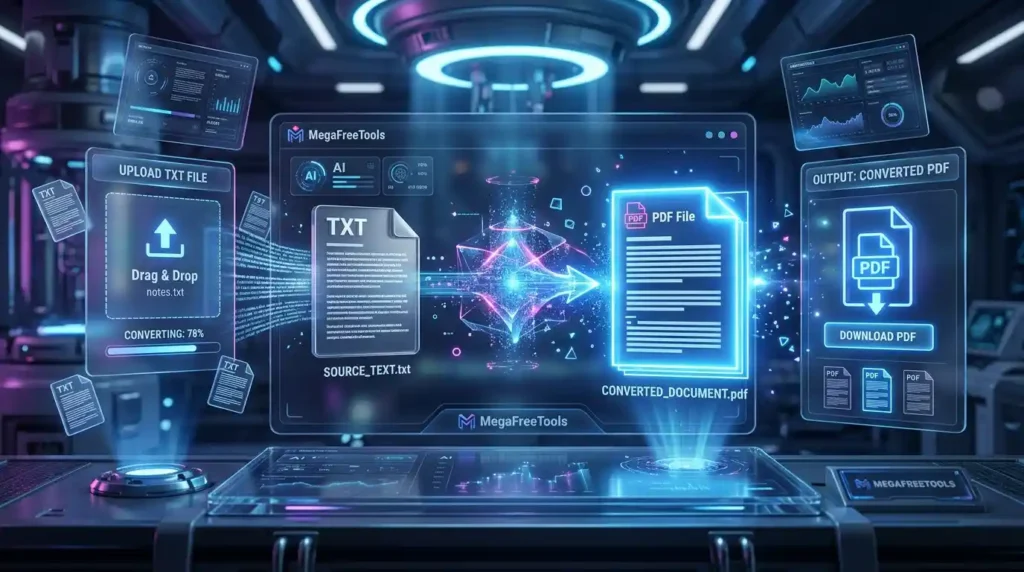
Converting a text file to PDF online has never been easier. Whether you’re a student turning notes into a submission, a freelancer sending a professional proposal, or a small business owner managing digital documents — the right free tool makes all the difference.
In 2026, Mega Free Tools stands out as one of the most complete and genuinely free platforms for all your document conversion needs. From the Text to PDF converter to PDF merging, compression, image conversion, and beyond — everything is free, fast, and browser-based.
Stop emailing .txt files that look unprofessional. Convert them to clean PDFs in under a minute — right now, at megafreetools.com.
Explore more tools: PDF Compressor · Word to PDF · JPG to PDF · Merge PDF · All Free Tools