
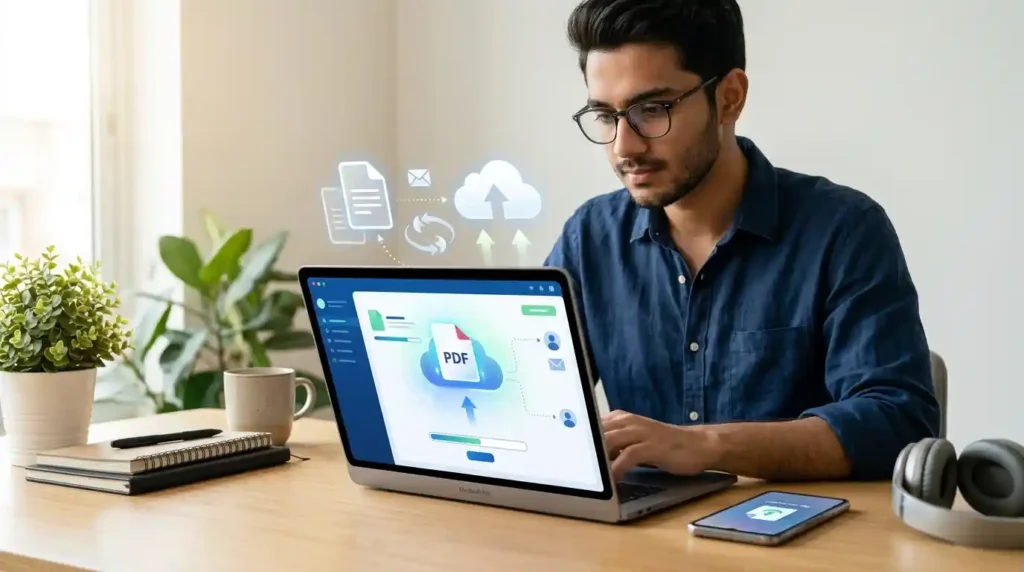
Sharing a PDF file sounds simple — until it isn’t. You’ve created the perfect document, and now you need to share PDF files online instantly. But then the email bounces back because the file is too large. Or the other person can’t open the attachment. Or you’re stuck on mobile with no idea how to send it securely.
You’re not alone. Millions of people search for the best way to share PDF files every single day. Whether you’re a student submitting assignments, a freelancer sending proposals, or a business professional distributing reports, knowing how to send PDF online free — fast and securely — is an essential skill in 2025.
This guide covers everything: PDF sharing methods, step-by-step instructions, the best tools, security tips, and answers to the most common questions. Let’s make online PDF sharing effortless for you.
Why PDF Sharing Matters More Than Ever
PDF (Portable Document Format) remains the gold standard for digital document sharing. Unlike Word docs or images, PDFs preserve formatting perfectly across all devices. According to Adobe, over 400 billion PDF files are opened every year — that number keeps climbing.
But traditional file sharing comes with real headaches:
- Email attachment limits (usually 10–25 MB)
- Slow download speeds for large files
- Security risks when sending sensitive documents
- Incompatible formats across devices
That’s exactly why smart online PDF sharing tools and cloud storage services have become the go-to solution for individuals and businesses alike.
Best Ways to Share PDF Files Online
There are several proven PDF sharing methods that work in 2025. Here’s a breakdown of each:
1. Share PDF via Google Drive (Most Reliable Method)
Google Drive PDF sharing is hands-down one of the most trusted and widely-used methods for cloud file sharing. Here’s how to do it step by step:
- Go to Google Drive and sign in
- Click “+ New” → “File Upload” and select your PDF
- Once uploaded, right-click the file and select “Share”
- Change the access to “Anyone with the link”
- Click “Copy Link” and share it anywhere
That’s it. You’ve just created a shareable PDF link without any email attachment size limits. The recipient can view or download the file instantly — no Google account required.
Pro Tip: Before uploading, compress your PDF using Mega Free Tools PDF Compressor to reduce file size without losing quality. Smaller files upload faster and are easier to share.
2. Share PDF via Email (Classic but Tricky for Large Files)
Sending PDF via email is still the most common method, but it has a critical limitation: most email providers cap attachments at 10–25 MB.
How to send PDF via email properly:
- For files under 10 MB: Attach directly and send
- For files 10–25 MB: Compress first (use Mega Free Tools PDF Compressor), then attach
- For files over 25 MB: Upload to Google Drive or Dropbox and share PDF via link in the email body
This trick of sending a link instead of an attachment is the single best way to share large PDF files online without hitting email limits.
3. Share PDF on WhatsApp (Best for Mobile Users)
WhatsApp PDF sharing is incredibly popular, especially in South Asia and other mobile-first regions. Here’s how to share PDF on WhatsApp in seconds:
On Mobile:
- Open WhatsApp and go to the chat
- Tap the attachment icon (paperclip)
- Select “Document”
- Browse and select your PDF file
- Tap Send
WhatsApp supports PDF files up to 100 MB, making it excellent for sharing large PDF files from mobile. This is one of the fastest methods for how to send PDF files on WhatsApp.
4. Share PDF via Dropbox (Great for Teams)
Dropbox PDF sharing works similarly to Google Drive:
- Upload your PDF to Dropbox
- Right-click → “Copy Link”
- Share the link via email, chat, or any platform
Dropbox is particularly popular for business file sharing and cross-platform file sharing because it works seamlessly on Windows, Mac, iOS, and Android.
5. WeTransfer (Best for One-Time Large File Sending)
WeTransfer file sharing lets you send files up to 2 GB for free without creating an account. Just go to wetransfer.com, upload your PDF, enter the recipient’s email, and hit send. It’s ideal for sending large PDF files free when you need a quick, no-signup solution.
Step-by-Step: How to Share PDF Files on Mobile vs Desktop
Mobile (Android & iOS)
- Use WhatsApp, Telegram, or Google Drive app
- For large files, use the Google Drive app to upload and share a link
- Need to convert an image to PDF first? Use JPG to PDF or PNG to PDF tools instantly
Desktop (Windows & Mac)
- Use Google Drive, Dropbox, or OneDrive for cloud-based sharing
- For creating or editing PDFs, try Word to PDF or Text to PDF converters
- Need to split a large PDF before sharing? Use the Split PDF tool from Mega Free Tools
- Want to merge multiple PDFs into one shareable file? Try the Merge PDF tool
Best Tools to Share PDF Files Online — Comparison Table
| Tool | Free Plan | Max File Size | Best For |
|---|---|---|---|
| Google Drive | Yes | 15 GB storage | General sharing |
| Dropbox | Yes | 2 GB storage | Team collaboration |
| WeTransfer | Yes | 2 GB per transfer | One-time large transfers |
| Yes | 100 MB | Mobile sharing | |
| Mega Free Tools | Yes | Varies by tool | PDF editing + sharing prep |
| OneDrive | Yes | 5 GB storage | Windows users |
For all-in-one PDF file sharing online tasks — from compression to conversion to splitting — Mega Free Tools is the smart choice for users who want free, fast, and reliable tools in one place.
How to Share PDF Files Securely Online
Security is a real concern, especially when sharing sensitive documents like contracts, medical records, or financial reports. Here are the best practices for secure PDF sharing online:
1. Use Password Protection Before sharing, add a password to your PDF. Adobe Acrobat and Smallpdf both offer this feature. Only the recipient with the password can open it.
2. Set View-Only Permissions Google Drive lets you restrict sharing so recipients can view but not download or copy. Click “Share” → “Advanced Settings” → Disable download.
3. Use Encrypted Platforms Services that offer file encryption technology and secure file transfer protocols (like HTTPS) ensure your document isn’t intercepted during transmission.
4. Use Expiring Links Some tools like Dropbox Business allow you to set expiry dates on shared links — after the date passes, the link stops working.
5. Avoid Public Wi-Fi Never upload or share sensitive PDFs on unsecured public networks without a VPN.
For additional security-related tools, explore Mega Free Tools Password Generator to create strong passwords for your protected PDFs.

How to Compress PDF Before Sharing
Large PDF files are one of the biggest obstacles to smooth online document distribution. The good news: you can dramatically reduce file size without losing quality.
Here’s how:
- Go to Mega Free Tools PDF Compressor
- Upload your PDF file
- Choose compression level (standard or maximum)
- Download and share the compressed file
This takes under 60 seconds and can reduce a 50 MB PDF down to just a few MB — making it easy to attach to emails or share via WhatsApp.
You can also explore Mega Free Tools image compressor if your PDF contains heavy embedded images.
Advanced PDF Tools You Might Need
While preparing your PDF for sharing, you might also need:
- PDF to Word — Convert PDF to editable Word document
- PDF to JPG — Extract images from PDF
- QR Code Generator — Create a QR code that links directly to your shared PDF
- Watermark Remover — Clean up PDFs before sharing
- Word Counter — Check document length before converting and sharing
- Background Remover — Clean up images inside PDFs
- Case Converter — Fix text formatting issues
All these tools are available free at Mega Free Tools — your one-stop platform for all document-related tasks.
Why Choose Mega Free Tools for PDF Sharing Prep?
Mega Free Tools is a growing platform trusted by students, freelancers, and business professionals for fast, reliable, browser-based tools. You don’t need to install any software. Everything runs in your browser — on mobile or desktop.
From compressing and converting to splitting and merging, Mega Free Tools gives you everything you need to prepare, optimize, and manage your PDFs before sharing them with anyone.
Explore all available tools at megafreetools.com/tools/ and check out their services or contact the team if you need help.
For additional productivity and document tools, you can also explore trusted platforms like Toolify Worlds and Baco Consultants for complementary business and document management resources.
Frequently Asked Questions (FAQ)
How do I share PDF files online?
Upload your PDF to Google Drive, Dropbox, or WeTransfer, then copy the shareable link and send it via email, WhatsApp, or any messaging app. This bypasses email attachment size limits entirely.
What is the best way to send PDF files?
The best way to send PDF files is via Google Drive for most situations. Upload, create a shareable link, and send it — works on all devices, completely free.
Can I share PDF without email attachment?
Yes. Upload your PDF to Google Drive or Dropbox, copy the share link, and paste it into your email instead of attaching the file. The recipient clicks the link to open or download it.
How do I send large PDF files for free?
Use WeTransfer (up to 2 GB free), Google Drive (15 GB free storage), or compress the PDF first using Mega Free Tools PDF Compressor and then email it.
Is Google Drive good for sharing PDF files?
Absolutely. Google Drive PDF sharing is reliable, secure, and free. It supports files up to 15 GB and lets you control permissions — view only, comment, or edit.
How can I share PDF on WhatsApp?
Open WhatsApp → Select chat → Tap the attachment icon → Choose “Document” → Select your PDF → Send. WhatsApp supports PDFs up to 100 MB.
Are PDF sharing tools safe?
Reputable tools like Google Drive, Dropbox, and Mega Free Tools use HTTPS encryption and secure servers. Always avoid uploading sensitive documents to unknown or unverified platforms.
How do I create a shareable PDF link?
Upload your PDF to Google Drive → Right-click the file → Click “Get link” → Change access to “Anyone with the link” → Copy and share the link.
How to share multiple PDF files in one link?
Merge all PDFs into a single file using Mega Free Tools Merge PDF, then upload and share via Google Drive link.
How to share PDF from laptop to mobile?
Use Google Drive or WhatsApp Web. Upload the PDF on your laptop, then access it from your phone via the Drive app or scan a WhatsApp QR code to send it through the mobile app.
Conclusion: Start Sharing PDFs Smarter Today
Sharing PDF files online doesn’t have to be complicated or frustrating. Whether you prefer Google Drive PDF sharing, WhatsApp PDF sharing, email with a link, or dedicated file transfer services like WeTransfer, the right method depends on your file size, audience, and security needs.
The key takeaways:
- Always compress your PDF before sharing to avoid size issues
- Use shareable links instead of email attachments for large files
- Enable password protection or view-only settings for sensitive documents
- Use trusted online PDF sharing tools that offer encryption and secure transfer
For all your PDF preparation needs — compressing, converting, splitting, merging, and more — Mega Free Tools has you covered with a complete suite of free, browser-based tools. No downloads, no subscriptions, no hassle.
Start using Mega Free Tools today and make online PDF sharing effortless — every single time.
Have questions or need help? Contact Mega Free Tools anytime.
Pingback: Beginner's Guide to Working with PDF Files (2026)
Yes 👍 our PDF Compressor tool helps you easily reduce the size of your PDF files without losing quality.
You can compress your files in just a few seconds and make them easy to upload, share, and download.
Try here 👉 https://megafreetools.com/pdf-compressor/