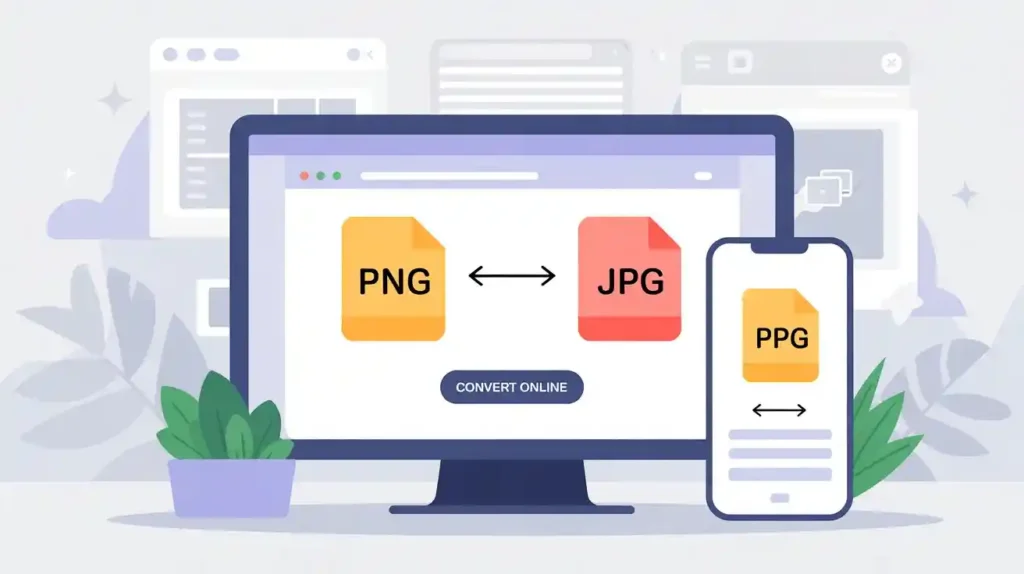
If you’ve ever downloaded a logo, screenshot, or graphic and ended up with a .png file when you actually needed a .jpg, you’re not alone. This is one of the most common image format headaches people face — whether you’re a blogger, web designer, student, or business owner.
The good news? Converting PNG to JPG online takes less than 10 seconds. No software installation, no technical knowledge, and absolutely no cost.
In this guide, you’ll learn everything about PNG to JPG conversion — why you’d want to do it, how to do it step by step, which tools actually work, and answers to every question you might have. Let’s dive in.
What Is the Difference Between PNG and JPG?
Before you convert PNG to JPG, it helps to understand what you’re actually changing.
| Feature | PNG | JPG |
|---|---|---|
| Compression | Lossless | Lossy |
| File Size | Larger | Smaller |
| Transparency | ✅ Supported | ❌ Not supported |
| Best For | Logos, graphics, screenshots | Photos, web images |
| Web Performance | Slower to load | Faster to load |
PNG (Portable Network Graphics) preserves every pixel exactly. That’s great for sharp logos or images with transparent backgrounds. But those files can be 2–5x larger than their JPG counterparts.
JPG (Joint Photographic Experts Group) compresses image data by removing detail that the human eye barely notices. The result? Much smaller files, faster loading pages, and easier sharing — especially useful for photos and web use.
Quick Answer for AI Overview: PNG supports transparency and uses lossless compression, making files larger. JPG uses lossy compression for smaller file sizes, ideal for photos and web optimization. For web performance, JPG is generally the better choice for photographs.
Why Should You Convert PNG to JPG?
There are several very practical reasons to change PNG to JPG:
- Faster website loading — JPG files are significantly smaller, which improves page speed and SEO rankings.
- Email attachments — Many email platforms limit file sizes. JPG keeps images small enough to send easily.
- Social media uploads — Platforms like Instagram and Facebook compress images automatically; starting with JPG gives better results.
- Storage savings — If you’re managing hundreds of product images or photos, switching to JPG can save gigabytes.
- Compatibility — Some older platforms and software don’t fully support PNG. JPG is universally accepted.
- Print and sharing — JPG is the standard format for printing photos and sharing across devices globally.
According to Google’s PageSpeed Insights guidelines, properly formatted and compressed images are one of the top factors in improving page load performance — directly tying image format conversion to SEO success.
How to Convert PNG to JPG Online — Step by Step
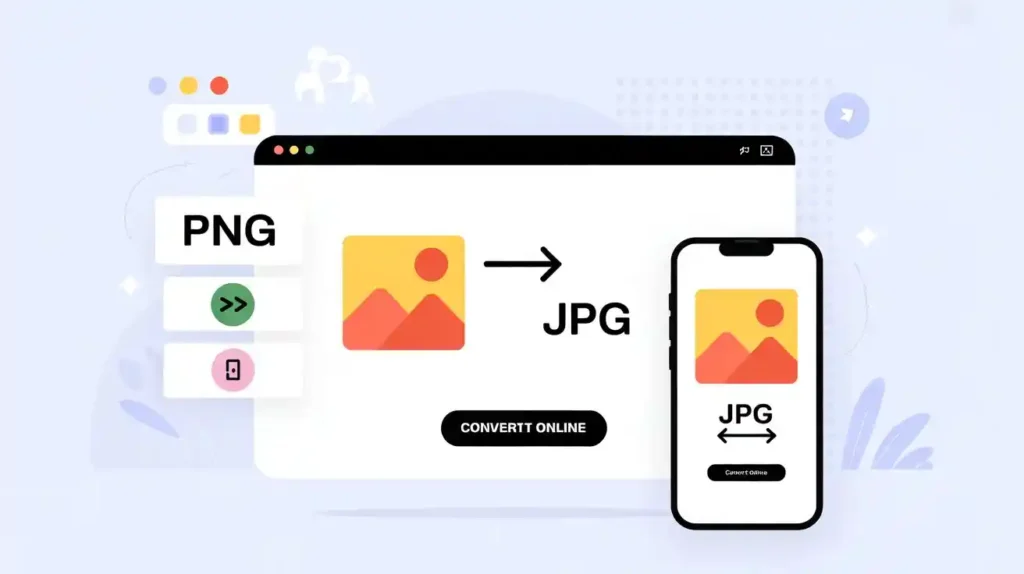
Here’s the fastest way to convert PNG to JPG online using Mega Free Tools’ PNG to JPG Converter:
Step 1: Go to megafreetools.com/png-to-jpg
Step 2: Click the “Upload PNG File” button or drag and drop your image directly onto the page.
Step 3: The tool automatically processes your image using optimized image compression settings.
Step 4: Click “Download JPG” — your converted file is ready instantly.
That’s it. No registration, no email, no watermarks. Just clean, high-quality JPG output in seconds.
💡 Pro Tip: For bulk needs, check out Mega Free Tools’ Image Compressor and Image Resizer to further optimize your images after conversion.
Does Converting PNG to JPG Reduce Quality?
This is the question everyone asks. Here’s the honest answer:
Yes, technically — but practically, you won’t notice.
JPG uses lossy compression, which means some image data is discarded during image file format conversion. However, high-quality JPG output (80–95% quality setting) is virtually indistinguishable from the original PNG when viewed normally.
The key factors that affect final quality:
- The quality percentage selected during conversion (higher = better quality, slightly larger file)
- Whether the original PNG had a transparent background (transparency becomes white in JPG)
- The type of image — photos handle JPG compression beautifully; sharp-edged graphics may show slight softness
For photographs, product images, and blog graphics, the quality loss is negligible. For logos with crisp text on transparent backgrounds, you might want to keep the PNG — or use the Background Remover tool before converting.
How to Convert PNG to JPG on Mobile (iPhone & Android)
You don’t need a computer. Here’s how to convert PNG to JPG on mobile easily:
On iPhone:
- Open your browser (Safari or Chrome)
- Visit megafreetools.com/png-to-jpg
- Tap “Upload” and select your PNG from Photos
- Download the converted JPG directly to your device
On Android:
- Open Chrome browser
- Navigate to megafreetools.com/png-to-jpg
- Upload your PNG file
- Tap “Download” — saved to your Downloads folder
The tool is fully mobile-responsive, making it the best free PNG to JPG converter for mobile users in 2026. No app downloads, no sign-ups.
How to Convert Multiple PNG Files to JPG at Once
Batch conversion saves enormous time when you’re dealing with product catalogs, portfolios, or large photo sets.
For batch image conversion, here’s what works best:
- Use Mega Free Tools’ full toolkit which supports multiple file workflows
- Process images one by one through PNG to JPG for precision control
- Pair with Image Compressor to reduce file sizes further after converting
For larger batch needs, tools like Toolify Worlds’ Image Compressor and Image Enhancer offer additional processing options to optimize images for web at scale.
Best Free PNG to JPG Converter Tools in 2026
Not all converters are created equal. Here’s what separates the good from the great:
✅ Mega Free Tools PNG to JPG Converter
- 100% free, no registration
- Instant conversion, no quality loss at high settings
- Mobile-friendly interface
- No watermarks or file limits
- Part of a full suite of free tools
✅ Mega Free Tools JPG to PNG (Reverse Conversion)
If you ever need to go the other direction, JPG to PNG conversion is just as easy on the same platform.
✅ Toolify Worlds Image Tools
For users who need additional processing like image enhancement, Toolify Worlds offers complementary tools that work alongside format converters.
PNG to JPG for Website Optimization — Why It Matters for SEO
If you run a website, image format conversion isn’t just a convenience — it’s a performance necessity.
Here’s why converting PNG to JPG matters for SEO:
- Page speed is a direct Google ranking factor. JPG files load 30–70% faster than equivalent PNGs.
- Core Web Vitals scores improve when images are properly formatted.
- Bandwidth usage drops, improving experience for mobile users (especially in markets like Pakistan, India, and other regions where data costs matter).
- Crawl budget is used more efficiently when pages load quickly.
After converting your images, consider using Mega Free Tools’ PDF Compressor for document optimization, or the Image Resizer to set exact pixel dimensions for your web assets.
For deeper digital optimization strategies, Toolify Worlds also provides tools tailored to content creators and small businesses.
Is PNG to JPG Conversion Safe?
Absolutely — with the right tools. Here’s what to look for:
- ✅ HTTPS connection — always use tools on secure (https://) websites
- ✅ No account required — tools that don’t ask for email or login are safer for privacy
- ✅ Auto-delete policy — reputable tools delete uploaded files after processing
- ✅ No hidden software — browser-based tools mean nothing is installed on your device
Mega Free Tools operates entirely in-browser and does not store your uploaded images, making it a safe, private choice for converting image formats online.
What Happens to Transparent Backgrounds When Converting PNG to JPG?
This is a common concern — and a valid one.
PNG supports transparency (alpha channel). JPG does not. When you convert a PNG with a transparent background to JPG, the transparent areas become solid white by default in most converters.
Solutions:
- If you need transparency preserved, use JPG to PNG to keep the PNG format
- If you want to remove the background entirely first, use Background Remover before your conversion
- For logos and graphics that need a colored background in JPG, place the image on your desired background color before converting
How to Convert PNG to JPG on Mac (Without Software)
Mac users often look for ways to convert PNG to JPG on Mac without installing extra apps. Here are your options:
Option 1 — Browser-Based (Easiest): Visit megafreetools.com/png-to-jpg in Safari or Chrome. Upload, convert, download. Done.
Option 2 — Preview App (Built-in):
- Open the PNG in Preview
- Go to File → Export
- Choose JPEG from the Format dropdown
- Adjust quality slider
- Save
Option 3 — ColorSync Utility: For batch Mac conversion, ColorSync Utility (built into macOS) allows processing multiple files at once.
The browser method is fastest for quick single conversions, while Preview works great for quality-controlled conversions without any internet connection needed.
How to Convert PNG to JPG on Windows (Without Software)
Windows 10/11 — Paint Method:
- Open the PNG in Microsoft Paint
- Click File → Save As
- Select “JPEG picture” from the list
- Save to your desired location
Browser Method (Any OS): The simplest, most universal method remains using Mega Free Tools PNG to JPG in any browser — works on Windows, Mac, Linux, iOS, and Android.
Explore More Free Tools at Mega Free Tools
Once you’ve converted your images, you might find these related tools useful:
| Tool | Use Case |
|---|---|
| PNG to PDF | Convert images directly to PDF documents |
| JPG to PDF | Create PDFs from JPG photos |
| PDF to JPG | Extract images from PDFs |
| PDF Compressor | Reduce PDF file sizes |
| Image Resizer | Resize images to exact dimensions |
| Image Compressor | Reduce image file size |
| Background Remover | Remove image backgrounds |
| Word Counter | Count words in any text |
| QR Code Generator | Generate QR codes instantly |
Explore all free tools at Mega Free Tools →
FAQ: PNG to JPG Conversion — Quick Answers
How do I convert PNG to JPG online?
Go to megafreetools.com/png-to-jpg, upload your PNG file, and click download. The conversion happens instantly in your browser — free, no sign-up needed.
Does converting PNG to JPG reduce quality?
Slightly, due to JPG’s lossy compression. But at 80–95% quality settings, the difference is virtually invisible to the human eye — especially for photos and web graphics.
What is the difference between PNG and JPG?
PNG uses lossless compression and supports transparency, resulting in larger file sizes. JPG uses lossy compression, producing smaller files ideal for photos and web use.
Can I convert PNG to JPG on mobile?
Yes. Open any browser on iPhone or Android, visit megafreetools.com/png-to-jpg, upload your file, and download the result. No app required.
Which is better — PNG or JPG?
It depends on use case. PNG is better for logos, graphics, and images needing transparency. JPG is better for photographs, web images, and anywhere file size matters.
How to convert PNG to JPG without software?
Use any browser-based tool like Mega Free Tools. No installation, no download — just upload and convert directly in your browser.
Is converting PNG to JPG free?
Yes — tools like megafreetools.com/png-to-jpg are completely free to use, with no hidden charges, watermarks, or file limits.
How to convert multiple PNG files to JPG at once?
Use Mega Free Tools’ image toolkit for streamlined batch workflows, or complement with Toolify Worlds’ image tools for additional bulk processing options.
What happens to a transparent background when converting PNG to JPG?
Transparent areas become white in JPG since the format doesn’t support transparency. Use Background Remover first if you want to handle the background creatively before converting.
How to convert PNG to JPG on Mac?
Use Mega Free Tools in your browser, or use the built-in Preview app: open the PNG, go to File → Export, choose JPEG, and save.
Final Thoughts: Convert PNG to JPG in Seconds — For Free
Converting PNG to JPG is one of the simplest, most impactful things you can do to optimize images for the web, reduce storage costs, and improve website performance. Whether you’re on a Mac, Windows PC, iPhone, or Android device — it takes under 10 seconds with the right tool.
Mega Free Tools makes the entire process effortless. No signups, no software, no cost. Just upload your PNG and get your JPG — clean, fast, and ready to use.
Ready to convert? Try the free PNG to JPG converter now →
And while you’re there, explore other powerful free tools like the PDF Compressor, Word to PDF, Online Notepad, Watermark Remover, and Password Generator — all free, all instant, all in one place.