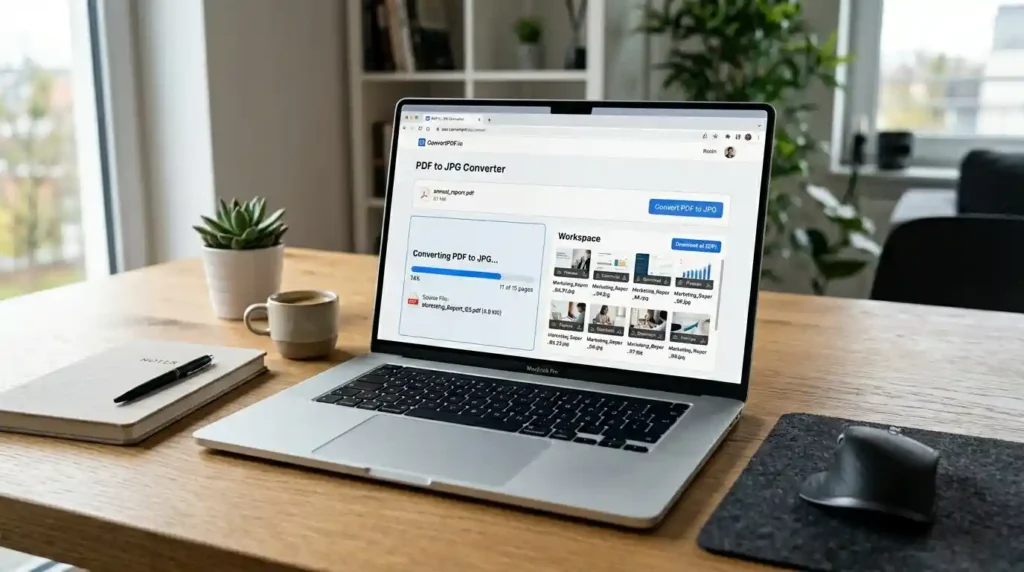
Have you ever needed to share a single page from a PDF but realized the recipient couldn’t open it? Or maybe you needed to upload a document as an image to a website that doesn’t accept PDF files? That’s exactly where converting PDF to JPG online becomes a lifesaver.
Whether you’re a student, freelancer, business professional, or casual user, knowing how to convert PDF pages to JPG images quickly and for free is one of those practical skills that saves hours of frustration. In this guide, you’ll get a step-by-step walkthrough, tool comparisons, quality tips, mobile methods, and answers to every question you might have — all in plain, human language.
Let’s dive in.
Why Would You Need to Convert PDF to JPG?
PDFs are brilliant for preserving document formatting across devices, but they’re not always the most flexible format. Here are some real-world reasons people convert PDF to image format every single day:
- Social media sharing — Platforms like Instagram and Twitter don’t support PDF uploads, but they accept JPG images instantly.
- Email previews — Embedding an image in an email body looks far more professional than attaching a PDF.
- Web publishing — Websites and blogs often display images inline, making JPG the preferred choice over PDF for page content.
- Editing flexibility — Once converted to JPG, you can crop, resize, or annotate images using basic photo tools.
- Presentations — Inserting PDF content into PowerPoint or Google Slides is much easier as a JPG image.
- Archiving scanned documents — Scanned PDFs are essentially images anyway, and converting them to JPG reduces confusion.
The need for high quality PDF to JPG conversion has never been greater — and the good news is you don’t need expensive software to get it done.
Benefits of Converting PDF to Image Format
Before jumping into the how-to, let’s briefly look at why this conversion makes sense from a technical standpoint.
JPG (JPEG) is a pixel-based image format designed for efficient compression. When you convert a PDF page into JPG, you essentially render the portable document format as a raster image — meaning every element on the page (text, graphics, charts) becomes part of a single visual file.
Key benefits include:
- Universal compatibility — JPG files open on every device, browser, and operating system without any special software.
- Smaller file sizes — With proper image resolution optimization, JPGs can be compressed significantly without major visual loss.
- Easy embedding — Unlike PDFs, JPG images can be inserted directly into Word documents, websites, and apps.
- Faster loading — For web use, a JPG version of a document page loads much faster than a PDF viewer.
If you’re regularly working with documents and images, tools like the Image Compressor at Mega Free Tools and the Image Resizer can help you manage the resulting JPG files with precision.
Step-by-Step: How to Convert PDF to JPG Online (Free)
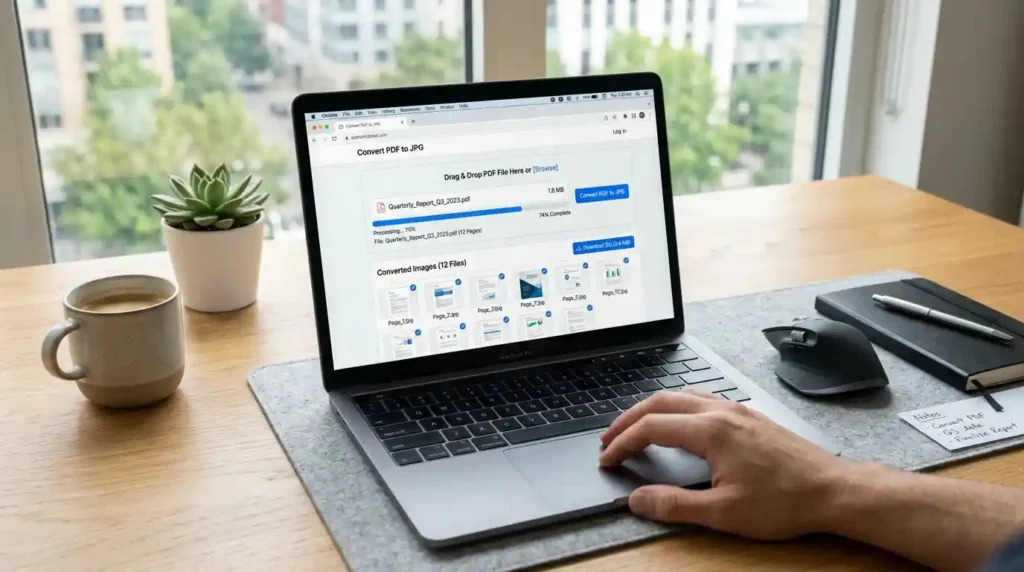
You don’t need to install anything. Here’s how to convert PDF to JPG online free in just a few minutes using a browser-based tool.
Step 1 — Choose a reliable online PDF to image converter
Head over to Mega Free Tools’ PDF to JPG converter — a fast, secure, and completely free tool that requires no sign-up.
Step 2 — Upload your PDF file
Click the upload button or drag and drop your PDF directly into the tool. Most online converters support PDFs up to several hundred MB, which covers the vast majority of documents.
Step 3 — Select your output settings
Choose your preferred image quality (high, medium, or standard). For professional use, always select high resolution to avoid pixelation.
Step 4 — Convert and download
Hit the “Convert” button. Within seconds, your PDF pages will be transformed into individual JPG images. Download them one by one or as a ZIP folder.
Step 5 — Use your JPG images
Your images are ready to share, upload, embed, or edit. Need to resize them? Use the free Image Resizer on Mega Free Tools.
That’s it — a complete step by step guide to convert PDF to JPG online in under two minutes.
Best Free PDF to JPG Tools: A Comparison
There are dozens of online file converter tools available, but not all are created equal. Here’s an honest look at the top options:
| Tool | Free? | Watermark? | Batch Conversion | Mobile-Friendly |
|---|---|---|---|---|
| Mega Free Tools | ✅ Yes | ❌ None | ✅ Yes | ✅ Yes |
| Adobe Acrobat Online | Partial | Sometimes | Limited (free) | ✅ Yes |
| Smallpdf | Partial | No | Limited (free) | ✅ Yes |
| ILovePDF | ✅ Yes | No | ✅ Yes | ✅ Yes |
| Sejda PDF Converter | Partial | No | Limited | ✅ Yes |
| PDF24 Tools | ✅ Yes | No | ✅ Yes | ✅ Yes |
For most users, Mega Free Tools offers the best combination of zero cost, no watermark, and batch conversion support — all without any account creation.
How to Convert PDF to JPG Without Losing Quality
One of the most common concerns people have is whether the conversion will degrade the image. Here’s what you need to know about high quality PDF to JPG conversion:
- Choose 300 DPI or higher — DPI (dots per inch) determines image sharpness. For print use, 300 DPI is the standard. For web use, 150 DPI is usually sufficient.
- Avoid re-converting — Every time you convert from one format to another, some quality may be lost due to JPG compression format algorithms. Always work from the original PDF.
- Use lossless intermediate formats when needed — If quality is critical, consider converting to PNG first (a lossless format), then converting to JPG. Try the PNG to JPG converter on Mega Free Tools for this workflow.
- Don’t over-compress — When downloading, resist the urge to select “low quality” for smaller file size. The quality loss often isn’t worth the saving.
Batch PDF to JPG Conversion: Convert Multiple Pages at Once
Got a 50-page PDF that you need as individual JPG images? You need a batch PDF to JPG converter.
Most professional tools — including Mega Free Tools — allow you to upload a multi-page PDF and automatically receive each page as a separate JPG file. This is ideal for:
- Converting entire eBooks or reports into image slideshows
- Extracting specific pages from lengthy contracts or manuals
- Creating image galleries from PDF portfolios
If you’re working with very large files, consider using the PDF Compressor first to reduce file size before conversion — this speeds up processing significantly.
For users who need to split a PDF before converting, the Split PDF tool on Mega Free Tools lets you extract specific pages first.
Converting PDF to JPG on Mobile and Desktop
On Desktop (Windows/Mac)
The easiest desktop method is using a browser-based tool. Simply go to megafreetools.com/pdf-to-jpg, upload your file, and download the results. No software installation needed.
You can also use Google Drive — upload your PDF, open it in Google Docs, and take screenshots of individual pages. However, this method doesn’t preserve the best image quality.
Microsoft Edge has a built-in PDF viewer that lets you screenshot pages, but again, dedicated tools produce cleaner results.
On Mobile (iPhone/Android)
How to save PDF as image on mobile:
- Open your mobile browser and navigate to Mega Free Tools
- Select the PDF to JPG tool
- Tap “Upload” and choose your PDF from your files or cloud storage
- Let it convert and download the JPG to your camera roll
This works seamlessly on both iOS and Android without needing any app. The entire process takes less than a minute on a standard mobile connection.
How to Extract Images From a PDF and Save as JPG
There’s an important distinction between converting a PDF page to JPG and extracting embedded images from within a PDF. Here’s how each works:
Converting a PDF page to JPG renders the entire page — including text, layout, and graphics — as a single flat image.
Extracting embedded images from PDF pulls out only the original image files that were inserted into the document during creation.
For most use cases, page-to-image conversion is what people need. The PDF to JPG tool handles this perfectly. If you’re also dealing with image format changes, tools like JPG to PNG are equally handy on the same platform.
Related Tools You Might Find Useful
Working with files and documents often involves more than one step. Here are some closely related tools available completely free at Mega Free Tools:
- JPG to PDF Converter — Reverse the process and combine images into a PDF
- PNG to PDF — Convert PNG screenshots or images to PDF format
- Word to PDF — Turn Microsoft Word documents into PDFs instantly
- PDF to Word — Convert PDFs back into editable Word documents
- Text to PDF — Create PDFs directly from plain text
- Merge PDF — Combine multiple PDF files into one
- Watermark Remover — Clean up images before or after conversion
- Background Remover — Remove backgrounds from your converted JPG images
For more specialized needs, you can also explore tools like the QR Code Generator and Password Generator — all part of the growing suite at Mega Free Tools.
You can also explore additional productivity and conversion tools at Toolify Worlds and professional digital services at Baco Consultants for more specialized needs.
Is It Safe to Use Online PDF Converters?
This is a legitimate concern, especially when dealing with sensitive documents. Here’s what to look for in a safe converter:
- HTTPS connection — Always check for the padlock icon in your browser address bar.
- Auto-deletion policy — Reputable tools delete uploaded files from their servers within minutes or hours.
- No account required — Tools that don’t require login are generally less likely to retain personal data.
- Privacy policy — A transparent privacy policy is a green flag.
Mega Free Tools operates with user privacy in mind — files are processed securely and not stored permanently. For sensitive documents, always review the tool’s privacy policy before uploading.
Frequently Asked Questions
How do I convert PDF to JPG online? Go to megafreetools.com/pdf-to-jpg, upload your PDF, select image quality, click Convert, and download your JPG files. No software or sign-up needed.
What is the best free PDF to JPG converter? Mega Free Tools offers a completely free, no-watermark PDF to JPG converter that works on all devices without registration.
Can I convert PDF to image without software? Yes. Browser-based tools like Mega Free Tools handle the entire conversion online — no download or installation required.
Does PDF to JPG reduce quality? Only if you select low-quality output settings. Always choose high resolution (300 DPI) for sharp, professional-grade results.
How do I convert multiple PDF pages into JPG? Upload a multi-page PDF to a batch converter like Mega Free Tools’ PDF to JPG tool. It will convert every page into a separate JPG image automatically.
Is it safe to use online PDF converters? Yes, as long as the tool uses HTTPS, has a clear privacy policy, and automatically deletes uploaded files. Mega Free Tools meets all these criteria.
Can I convert PDF to JPG on mobile? Absolutely. Open any mobile browser, visit megafreetools.com, and use the PDF to JPG tool — it’s fully mobile-responsive.
Which tool is best for PDF to image conversion? For free, fast, watermark-free conversion with batch support, Mega Free Tools is consistently one of the top-rated choices.
Conclusion: Start Converting Smarter
Converting PDF to JPG doesn’t have to be complicated or expensive. Whether you’re doing a single-page extraction or a full batch PDF to JPG conversion, the tools available today make the process fast, free, and surprisingly high quality.
The key takeaways from this guide:
- Use a free online PDF to JPG converter like Mega Free Tools for the easiest experience
- Always select high resolution output to preserve quality
- For multi-page PDFs, use batch conversion to get all pages as individual JPGs
- The process works equally well on desktop and mobile — no software needed
- Related tools like PDF Compressor, Image Resizer, and JPG to PDF round out your complete document workflow
Ready to convert your first PDF? Head over to Mega Free Tools — explore the full suite of free online tools designed to make your digital life easier, one file at a time. Have questions or feedback? The team is always available via the Contact Us page.