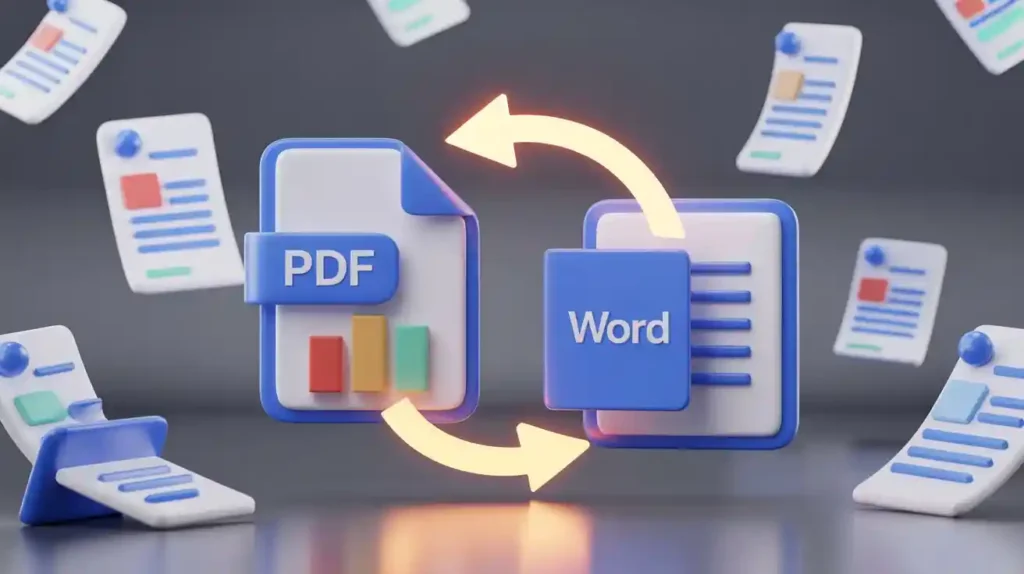
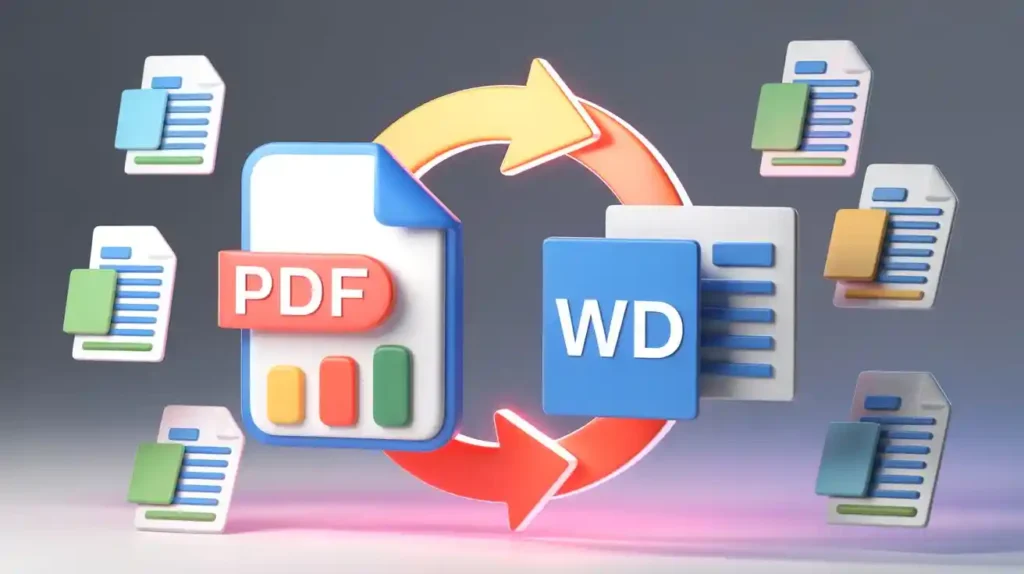
Have you ever converted a PDF to Word only to find everything is a mess — broken tables, shifted images, scrambled fonts? You are not alone. This is one of the most common frustrations people face when working with digital documents. The good news is that converting a PDF to Word without losing formatting is absolutely possible, and in this guide, you will learn exactly how to do it the right way.
Whether you are a student, a professional, or someone who regularly handles digital documents, this complete guide will walk you through the best tools, methods, and tips to get a clean, editable Word document from any PDF file.
Why Does Formatting Change When Converting PDF to Word?
Before jumping into solutions, it helps to understand the root cause. A PDF (Portable Document Format) was designed by Adobe to present documents consistently across all devices and platforms. It locks in fonts, images, spacing, and layout so the file looks the same whether you open it on Windows, Mac, or a smartphone.
Microsoft Word, on the other hand, uses a dynamic, flow-based format. Text wraps differently, images float, and tables adjust based on the page width. When you convert a PDF to Word, the conversion software has to reverse-engineer the PDF structure and map it onto Word’s flexible format. That is where things often go wrong.
Common formatting issues include:
- Tables breaking apart or merging incorrectly
- Images shifting out of place
- Fonts being replaced with generic ones
- Text spacing and alignment going off
- Multi-column layouts becoming single blocks of text
Understanding this helps you choose the right tool and method — one that uses advanced OCR (Optical Character Recognition) and layout analysis to preserve your original formatting as closely as possible.
Best Tools to Convert PDF to Word Without Losing Formatting
Not all PDF converters are created equal. Some tools produce near-perfect results, while others give you a jumbled mess. Here are the best options available today.
1. Mega Free Tools — PDF to Word Converter
If you want a fast, free, and accurate solution, Mega Free Tools PDF to Word Converter is one of the best online options available. It handles formatting preservation excellently — keeping your tables, images, headings, and text layout intact. No installation required, no account needed, and completely free to use.
Mega Free Tools also offers a full suite of document utilities including a Word to PDF converter, PDF compressor, Split PDF, Merge PDF, and PDF to JPG — all in one place. You can explore the full collection of free tools at Mega Free Tools without spending a single rupee or dollar.
2. Adobe Acrobat PDF to Word Converter
Adobe is the company that invented the PDF format, so it is no surprise their converter is highly accurate. Adobe Acrobat’s PDF to Word tool preserves most layouts, especially for professionally formatted documents. The online version is free for basic conversions, while the desktop software offers more advanced features.
3. Microsoft Word (Built-In Conversion)
If you are using Microsoft Word 2013 or later, you can open a PDF directly in Word and it will automatically convert it. Go to File → Open → Browse, select your PDF, and Word will do the rest. For simple PDFs with clean text, this works surprisingly well. For complex layouts, however, it may struggle.
4. ILovePDF and SmallPDF
These are popular browser-based tools that offer quick PDF to Word conversions. They work well for standard documents and are easy to use, though they may have file size limits on free plans.
5. Google Docs (Free Method)
Upload your PDF to Google Drive, right-click it, and choose “Open with Google Docs.” Google Docs will convert it automatically. This is a completely free method, though it works best with text-heavy PDFs rather than complex formatted documents.
Step-by-Step Guide to Convert PDF to Word Online
Here is the easiest and most reliable method using Mega Free Tools:
Step 1: Go to megafreetools.com/pdf-to-word
Step 2: Click the “Upload PDF” button and select your PDF file from your device.
Step 3: Wait a few seconds while the tool processes and converts your file. The smart engine analyzes your PDF’s layout, fonts, tables, and images.
Step 4: Click the “Download” button to save your converted Word (.docx) file.
Step 5: Open the file in Microsoft Word and review the formatting. Minor adjustments may be needed for very complex layouts.
That is it. No email required. No watermark. No hidden charges. Just a clean, editable Word document ready for use.
How to Convert Scanned PDF to Word (OCR Method)
A scanned PDF is essentially an image of a document — it looks like text, but it is actually just pixels. Regular PDF converters cannot extract text from it. You need OCR (Optical Character Recognition) technology.
OCR software analyzes the shapes of letters and numbers in an image and converts them into actual, selectable, editable text. According to IBM, OCR technology has accuracy rates above 99% for clean, high-quality scans.
Here is how to convert a scanned PDF to Word:
- Use a tool that supports OCR — Mega Free Tools, Adobe Acrobat, or online OCR services
- Upload your scanned PDF
- Select the OCR or “recognize text” option if available
- Download the converted Word file
- Proofread the output, as complex handwriting or poor scan quality may introduce errors
For best OCR results, make sure your scanned document is clear, properly oriented, and not too compressed. A high-resolution scan (300 DPI or above) gives the most accurate output.
Tips to Preserve Formatting During PDF to Word Conversion
Even with the best tools, a little preparation and post-conversion cleanup goes a long way. Here are practical tips to get the best results:
Before Conversion:
- Use a high-quality PDF. The cleaner the source, the better the output.
- Avoid PDFs that were created from scanned images if possible. Text-based PDFs convert much more accurately.
- Check if your PDF has copy protection or restrictions. Protected PDFs may not convert properly.
During Conversion:
- Use a tool that specifically mentions “formatting preservation” or “layout retention.”
- For documents with complex tables, consider using Adobe Acrobat or Mega Free Tools for better accuracy.
- For image-heavy PDFs, the JPG to PDF and PDF to JPG tools on Mega Free Tools can also help you extract and manage images separately.
After Conversion:
- Always review your converted document carefully.
- Fix any spacing or font inconsistencies manually.
- Use Word’s “Find & Replace” feature to clean up repeated formatting errors quickly.
- If tables are broken, select the content and reinsert as a proper Word table.
Comparison Table: Best PDF to Word Converters
| Tool | Free | OCR Support | Formatting Quality | No Install Needed |
|---|---|---|---|---|
| Mega Free Tools | ✅ Yes | ✅ Yes | ⭐⭐⭐⭐⭐ | ✅ Yes |
| Adobe Acrobat Online | ✅ Basic | ✅ Yes | ⭐⭐⭐⭐⭐ | ✅ Yes |
| Microsoft Word | ✅ Yes | ❌ Limited | ⭐⭐⭐⭐ | ❌ No |
| ILovePDF | ✅ Basic | ✅ Yes | ⭐⭐⭐⭐ | ✅ Yes |
| Google Docs | ✅ Yes | ✅ Basic | ⭐⭐⭐ | ✅ Yes |
| SmallPDF | ✅ Basic | ✅ Yes | ⭐⭐⭐⭐ | ✅ Yes |
More Free Tools You Might Need
While you are working with documents, you might find these other free tools from Mega Free Tools incredibly useful:
- PNG to PDF Converter — Convert PNG images to PDF instantly
- JPG to PNG Converter — Change image formats in seconds
- PNG to JPG Converter — Compress and convert PNG images
- Image Compressor — Reduce image file size without quality loss
- Image Resizer — Resize images to any dimension
- Text to PDF — Convert plain text into a formatted PDF
- Word Counter — Count words and characters instantly
- QR Code Generator — Create custom QR codes for free
- Background Remover — Remove image backgrounds automatically
- Watermark Remover — Clean watermarks from images easily
- Online Notepad — Write and save notes directly in your browser
- Password Generator — Create strong, secure passwords instantly
- Color Picker — Pick and identify colors from any image
- Case Converter — Convert text to uppercase, lowercase, or title case
You can also explore a wide range of additional utilities at Toolify Worlds Tools — including an Image Compressor, Image Enhancer, Pakistan Income Tax Calculator, and Pakistan Business Tax Calculator.
Frequently Asked Questions (FAQs)
How can I convert a PDF to Word without losing formatting? Use a dedicated online converter like Mega Free Tools PDF to Word. Upload your PDF, let the tool process it with layout-aware conversion, and download the Word file. For best results, use a text-based PDF rather than a scanned image.
What is the best free PDF to Word converter online? Mega Free Tools is one of the best free options available. It is fast, accurate, supports OCR for scanned documents, and requires no registration or payment.
Can scanned PDFs be converted into editable Word documents? Yes. You need a converter with OCR (Optical Character Recognition) technology. OCR reads the text from scanned images and turns it into real, editable content. Mega Free Tools and Adobe Acrobat both support this feature.
Why does formatting change when converting PDF to Word? PDFs use a fixed layout that locks in all design elements. Word uses a flexible, flow-based format. When converting between the two, the software has to re-map every element — and complex designs, unusual fonts, or embedded graphics can cause misalignment.
Which tools preserve tables and images when converting PDF files? Adobe Acrobat and Mega Free Tools are the most reliable for preserving tables and images. Using a high-quality source PDF also helps significantly.
Is Adobe PDF to Word converter accurate? Yes, Adobe Acrobat is highly accurate, especially for professionally formatted documents. However, it requires a subscription for full desktop features, whereas tools like Mega Free Tools offer comparable quality for free.
How do I convert a large PDF file to Word? Most online tools have file size limits on free plans. For large files, either use the desktop version of Adobe Acrobat or compress your PDF first using the Mega Free Tools PDF Compressor before uploading for conversion.
How do I convert a PDF to Word on my PC without software? You can use any browser-based tool like Mega Free Tools — just open your browser, go to megafreetools.com/pdf-to-word, upload your file, and download the result. No software installation needed.
How to convert a PDF file to Word for free online? Visit megafreetools.com/pdf-to-word, upload your PDF, and click download. It is 100% free with no hidden fees or registration requirements.
Final Thoughts
Converting a PDF to Word without losing formatting does not have to be a frustrating experience. With the right tool and a little know-how, you can get clean, professionally formatted Word documents in seconds.
For quick, free, and accurate conversions, Mega Free Tools is your go-to platform. With a full range of document, image, and text utilities all under one roof — from PDF splitting and merging to JSON validation and QR code generation — it is built to make your digital workflow faster and easier.
Head over to Mega Free Tools today, explore all the free tools available, and say goodbye to formatting headaches for good. Need help or have questions? Visit the Contact Us page or learn more on the About Us page to see why thousands of users trust Mega Free Tools every day.