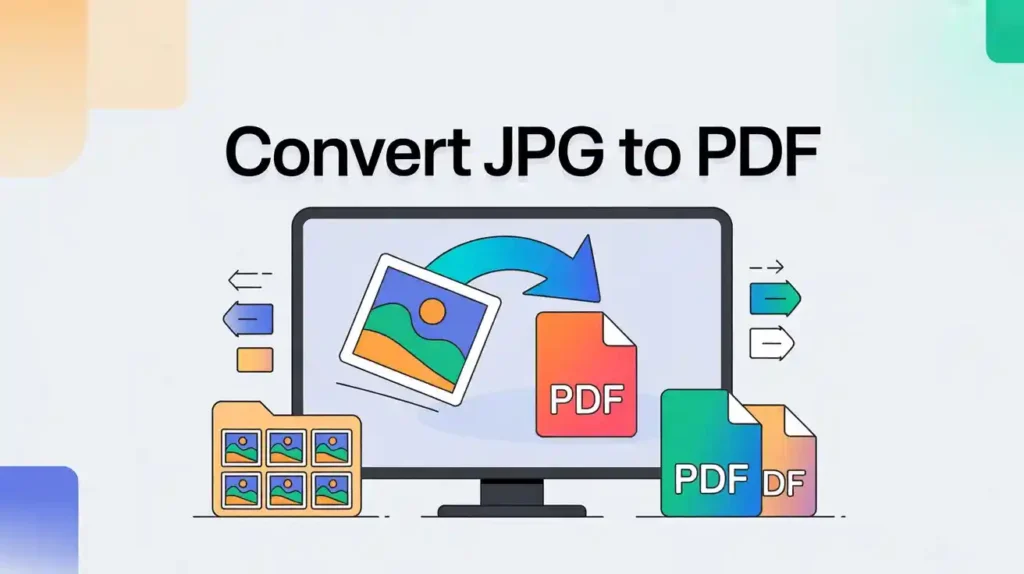
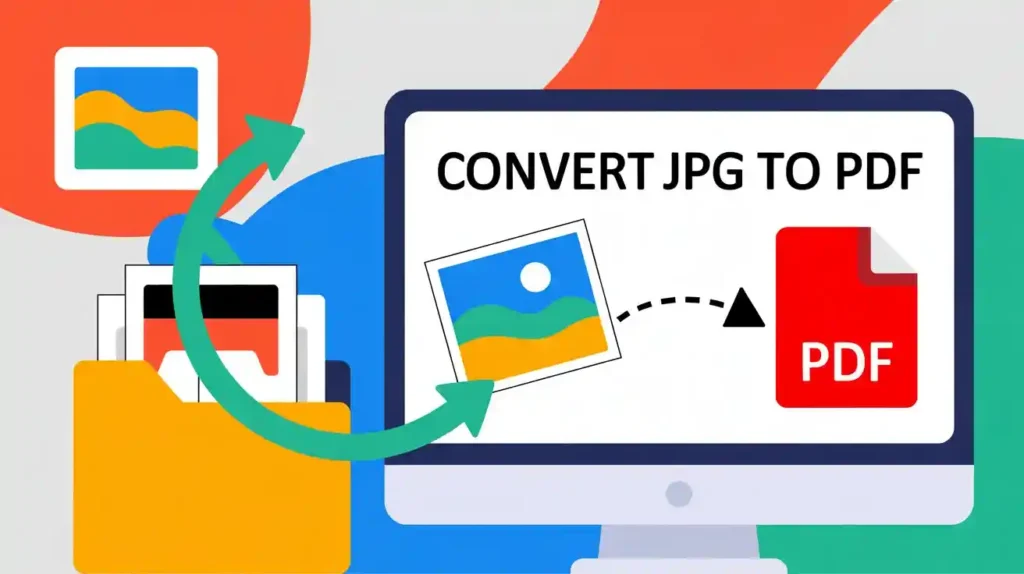
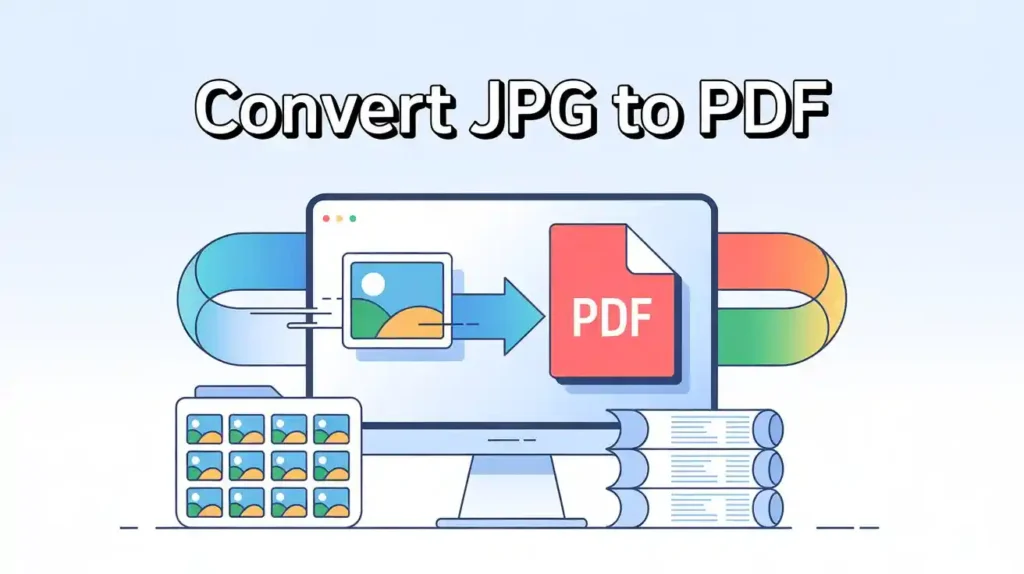
Whether you’re sending a scanned document, sharing a photo portfolio, or submitting an assignment, knowing how to convert JPG to PDF is one of those essential digital skills everyone needs. The good news? You don’t need expensive software or a tech degree to do it. In this guide, you’ll learn exactly how to convert JPG images into PDF files — on any device, for free, without watermarks, and without losing quality.
Let’s get into it.
Why Convert JPG to PDF in the First Place?
JPEG (or JPG) is the world’s most popular image format. It’s compact, widely supported, and perfect for photos. But PDF (Portable Document Format) is the gold standard for sharing professional documents. Here’s why people convert JPG to PDF every day:
- Universally readable — PDFs open on every device without quality loss
- Professional appearance — Clients and employers expect PDF submissions
- Combine multiple images — Merge several JPGs into one clean PDF file
- Secure and uneditable — PDFs preserve your original layout
- Smaller email attachments — Compressed PDFs are easier to share
According to Toolify Worlds, PDF remains the most trusted document format for business communication globally. And with the right tools, converting your images is genuinely effortless.
Method 1 – Convert JPG to PDF Online (Free, No Watermark)
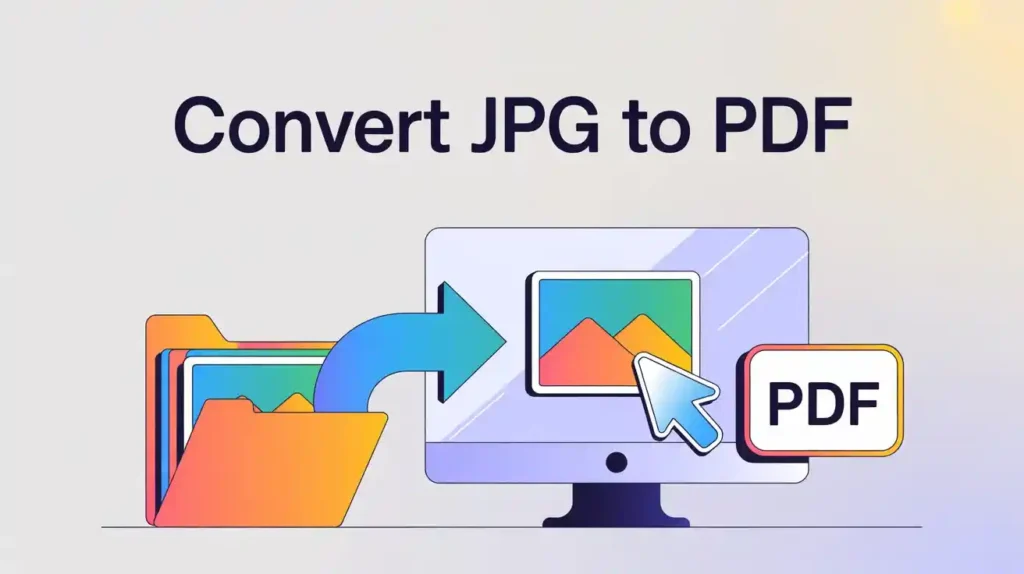
The fastest way to do this is using a free online tool. You don’t need to install anything — just upload, convert, and download.
Step-by-Step: How to Convert JPG to PDF Using Mega Free Tools
- Visit Mega Free Tools JPG to PDF Converter
- Click “Upload Image” and select your JPG file(s)
- Arrange the images in your preferred order
- Click “Convert to PDF”
- Download your PDF instantly — no watermark, no sign-up required
That’s it. The whole process takes under 30 seconds. You can also convert PNG to PDF, Word to PDF, and even Text to PDF using the same platform.
Method 2 – Convert JPG to PDF on Windows 10 (Without Software)
Windows 10 and 11 have a built-in feature that most people don’t know about. You don’t need to download any extra software.
Here’s how:
- Open your JPG image using Photos or Paint
- Press Ctrl + P to open the print dialog
- Under the printer options, select “Microsoft Print to PDF”
- Click Print
- Choose where to save the file and click Save
Done. Your JPG is now a PDF — completely free, zero software needed.
Method 3 – Convert JPG to PDF on Mac
Mac users have it even easier:
- Open your JPG in Preview
- Go to File → Export as PDF
- Name your file and click Save
For multiple images, select all your JPGs in Finder, right-click → Quick Actions → Create PDF.
Method 4 – Convert JPG to PDF on Android (Without an App)
Surprised? Your Android phone can do this natively.
- Open Google Photos and select the image
- Tap the Share button
- Choose Print from the options
- Select Save as PDF from the printer dropdown
- Tap the Download/Save button
Alternatively, use Mega Free Tools directly from your mobile browser — it works perfectly on Android and iOS without any app installation.
Method 5 – Convert JPG to PDF on iPhone
Apple makes this simple on iOS:
- Open the JPG in the Photos app
- Tap Share (the box with an arrow)
- Scroll down and tap Print
- Pinch outward on the print preview with two fingers — this creates a PDF
- Tap Share again and save the PDF to Files
Or, for even more control, visit Mega Free Tools on your iPhone browser and do it in one tap.
How to Convert Multiple JPG Files Into One PDF
One of the most searched questions is: how to combine multiple JPG files into one PDF? Here’s the quickest way:
Using Mega Free Tools:
- Go to JPG to PDF at Mega Free Tools
- Upload all your JPG files at once
- Drag to reorder pages as needed
- Hit Convert — all images merge into one single PDF
You can also use the Merge PDF tool if you already have separate PDFs and want to combine them.
How to Convert JPG to PDF Using Google Drive
Google Drive is a surprisingly effective free tool for this:
- Upload your JPG to Google Drive
- Right-click the image → Open with → Google Docs
- In Google Docs, go to File → Download → PDF Document (.pdf)
- Your image is now a PDF, saved to your device
This is especially useful when you’re working in a shared workspace or need cloud-based document conversion.
How to Keep High Quality When Converting JPG to PDF
One common worry: does converting JPG to PDF reduce quality?
The short answer: no, if you use the right tool. Low-quality converters compress your image unnecessarily. Here’s how to preserve quality:
- Use tools that offer high-resolution output settings
- Avoid free tools that force heavy compression
- Mega Free Tools JPG to PDF maintains original image resolution
- If your final PDF is too large, use the PDF Compressor afterward to reduce file size without visible quality loss
Convert JPG to PDF Under 100KB — Is It Possible?
Yes! Here’s the workflow:
- First, compress your image before converting
- Resize it if needed using Image Resizer
- Then convert to PDF using JPG to PDF
- If still too large, run the PDF through PDF Compressor
This workflow consistently delivers PDFs well under 100KB — perfect for online form submissions or email attachments.
Best Free JPG to PDF Tools Compared
| Tool | Free | No Watermark | Multiple Files | Mobile Friendly |
|---|---|---|---|---|
| Mega Free Tools | ✅ | ✅ | ✅ | ✅ |
| Adobe Acrobat Online | Partial | ❌ | Limited | ✅ |
| Smallpdf | Partial | ❌ | Limited | ✅ |
| ILovePDF | Partial | ❌ | Limited | ✅ |
Mega Free Tools stands out as the most accessible option — completely free, no account required, no hidden watermarks, and optimized for both desktop and mobile users.
Other Tools You’ll Love on Mega Free Tools
While you’re converting your files, Mega Free Tools offers an entire suite of helpful utilities:
- 🖼️ JPG to PNG Converter — Switch image formats instantly
- 📄 PDF to Word — Edit your PDFs in Word format
- 📄 PDF to JPG — Extract images from PDFs
- 🗂️ Split PDF — Separate multi-page PDFs
- 🎨 Background Remover — Clean up images before converting
- 🔐 Password Generator — Keep your documents secure
- 🔁 PNG to JPG — Fast format switching
- 📝 Word Counter — For all your writing needs
- 🎨 Color Picker — Design-friendly utility
- 💧 Watermark Remover — Clean your images
- 🔲 QR Code Generator — Generate QR codes free
Browse the full collection at Mega Free Tools – All Tools.
FAQ – People Also Ask
Q: How do I convert JPG to PDF for free? Go to megafreetools.com/jpg-to-pdf, upload your JPG, click Convert, and download your PDF — completely free, no sign-up needed.
Q: Can I convert JPG to PDF without software? Yes. Use any browser on your phone or PC to visit Mega Free Tools. No software download required. On Windows, you can also use the built-in “Print to PDF” function.
Q: How do I convert an image to PDF on my phone? Open your browser, visit Mega Free Tools, upload your image, and download the PDF. Works on both Android and iPhone without installing any app.
Q: What is the best JPG to PDF converter? For a fully free, watermark-free experience with no file limits, Mega Free Tools is one of the best options available in 2025.
Q: How do I merge multiple JPG files into one PDF? Upload all your JPG files at once on Mega Free Tools, reorder them as needed, and convert — they’ll all be merged into a single PDF automatically.
Q: Does converting JPG to PDF reduce quality? Not if you use a quality tool. Mega Free Tools preserves the original image resolution. For oversized files, use the PDF Compressor to reduce size without visible quality loss.
Q: How to convert JPG to PDF offline? On Windows: open the image → Print → Microsoft Print to PDF. On Mac: open in Preview → File → Export as PDF. No internet connection needed.
Q: How to convert JPG to PDF on iPhone and Android? On iPhone: Photos → Share → Print → pinch to preview → Save as PDF. On Android: Google Photos → Share → Print → Save as PDF. Or use Mega Free Tools via your mobile browser.
Final Thoughts
Converting JPG images into PDF files doesn’t have to be complicated or expensive. Whether you’re on a Windows PC, Mac, Android phone, or iPhone, there’s a quick and free method available to you. And if you want the easiest, fastest, most reliable solution — Mega Free Tools has everything you need in one place.
No sign-up. No watermark. No cost. Just results.
Ready to convert? Head over to Mega Free Tools JPG to PDF Converter right now and get it done in seconds. While you’re there, explore the full range of free tools available — from image converters to PDF editors, it’s your one-stop digital toolkit.
Have questions or need help? The team is always available via the Contact Us page. You can also read more about Mega Free Tools and why thousands of users in Pakistan and around the world trust it every day.
For more digital productivity tips and free tool recommendations, also check out Baco Consultants — a trusted resource for tech and business guidance.
This article was written to help everyday users understand file conversion clearly and confidently. All tools mentioned are free and verified.