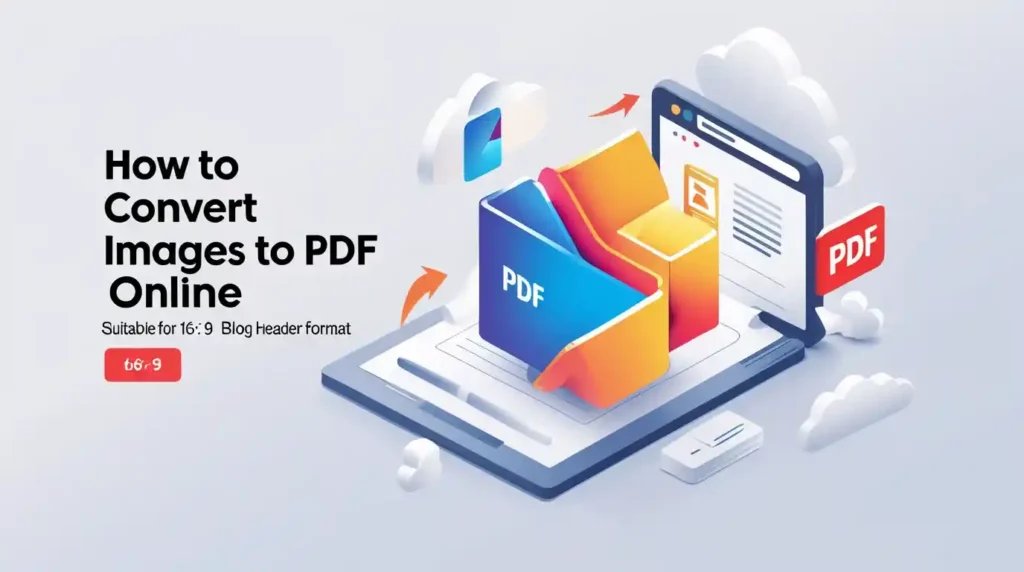
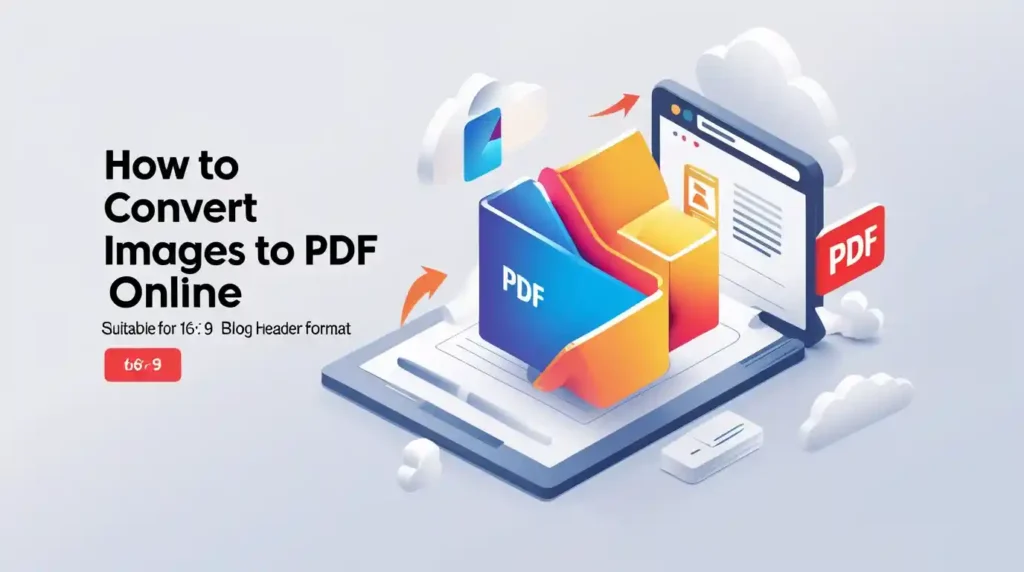
Whether you are sending a scanned document, compiling product photos for a client, preparing a portfolio, or simply trying to share multiple images as a single organized file — converting images to PDF online is one of the most practical digital skills you can have in 2026.
The good news? You do not need Acrobat. You do not need to install software. And you certainly do not need to pay for anything. The best free image to PDF converters work directly in your browser — fast, clean, and completely free.
This guide covers exactly how to do it, which tools to use, and everything else you need to know about JPG to PDF, PNG to PDF, and multiple image to PDF conversion.
Why Convert Images to PDF?
Before jumping into the how-to, it is worth understanding why converting images to PDF is so useful in everyday digital life.
PDF (Portable Document Format) is the universal standard for sharing documents. Unlike image files, a PDF:
- Maintains formatting across all devices and operating systems
- Preserves image quality at the original resolution
- Combines multiple images into a single organized file
- Is accepted everywhere — by employers, universities, government offices, and clients
- Looks professional when shared in business or academic contexts
- Is harder to edit accidentally, protecting your content integrity
- Reduces clutter by combining many image files into one clean document
Common real-world use cases include converting scanned receipts, identity documents, certificates, handwritten notes, product photographs, assignment pages, or any multi-image collection into a single shareable PDF file.
How to Convert Images to PDF Online — Step by Step
Here is the simplest and fastest method to convert images to PDF online without software:
Method 1 — Using Mega Free Tools (Fastest Free Method)
Mega Free Tools provides dedicated free converters for the most common image-to-PDF conversion needs — all browser-based, no registration required, no watermark on output files.
To convert JPG to PDF:
Step 1: Open the JPG to PDF converter at Mega Free Tools
Step 2: Click the upload button and select your JPG image (or multiple JPG images)
Step 3: Arrange the images in your preferred order if converting multiple files
Step 4: Click Convert and wait a few seconds
Step 5: Download your completed PDF file immediately
That is it. The entire process takes under 60 seconds for most files. No email required. No size limit warnings. No watermark on the output.
To convert PNG to PDF:
Follow the exact same process using the PNG to PDF converter at Mega Free Tools — it works identically and supports high-resolution PNG images including transparent backgrounds.
Method 2 — Converting Multiple Images to a Single PDF
This is where many people struggle. They have 5, 10, or 20 separate image files and need them all combined into one clean PDF document — in the correct order.
The JPG to PDF tool at Mega Free Tools supports multiple image uploads — you can add multiple JPG files and they will be compiled into a single PDF, with each image on its own page. The same capability applies to the PNG to PDF converter.
For the best results when merging multiple images into one PDF:
- Name your image files sequentially before uploading (e.g., page-01.jpg, page-02.jpg) so the order is clear
- Upload all images at once rather than one at a time
- Review the page order before converting
- Download and check the final PDF before sharing
Method 3 — Converting Images to PDF on Mobile (iPhone & Android)
Converting images to PDF on mobile is just as easy as on desktop, because all the tools covered in this guide are browser-based and fully mobile-responsive.
On your iPhone or Android device:
- Open your mobile browser (Chrome, Safari, or any browser)
- Go to megafreetools.com/jpg-to-pdf/ or megafreetools.com/png-to-pdf/
- Tap the upload button — your phone’s photo library will open
- Select your image or images
- Tap Convert and download your PDF
No app download required. The entire process works in your mobile browser in under a minute.
JPG to PDF vs PNG to PDF — Which Should You Use?
Both conversions produce high-quality PDFs, but there are some practical differences worth knowing:
| JPG to PDF | PNG to PDF | |
|---|---|---|
| Best for | Photographs, scanned documents, product images | Graphics, logos, screenshots, images with text |
| Transparent background | ❌ Not supported (JPG has no transparency) | ✅ Supported (PNG preserves transparency) |
| File size | Smaller | Larger |
| Quality | Slightly compressed | Lossless — no quality loss |
| Typical use case | Receipts, ID scans, photos | Certificates, graphic designs, screenshots |
For photograph-based content — scanned documents, identity cards, receipts, product photos — use JPG to PDF.
For graphics, screenshots, certificates, or images requiring transparent backgrounds — use PNG to PDF.
If you need to switch formats before converting, use the JPG to PNG converter or PNG to JPG converter at Mega Free Tools — both are free and instant.
Converting Images to PDF Without Losing Quality
One of the most common concerns people have is whether converting images to PDF reduces image quality. Here is the honest answer:
Quality depends on the tool, not the conversion itself. A good image to PDF converter should embed your image at its original resolution inside the PDF container — not re-compress or downscale it during conversion.
Signs of a good quality-preserving converter:
- ✅ Output PDF matches the original image sharpness
- ✅ Text in scanned images remains readable
- ✅ Colors are accurate — no washing out or darkening
- ✅ No visible compression artifacts in the final PDF
The Mega Free Tools JPG to PDF and PNG to PDF converters preserve your original image quality in the output PDF — making them reliable for professional use including document submissions, client presentations, and official applications.
For high-resolution images (product photography, certificate scans, architectural drawings), always start with the highest resolution source file available before converting.
How to Convert Scanned Images to PDF Online
If you are scanning physical documents — receipts, handwritten notes, contracts, certificates — and need to convert them to PDF, the process is straightforward:
Step 1: Scan your document using your phone camera or a physical scanner. Most modern smartphones have excellent built-in document scanning capabilities (iOS Notes app, Google PhotoScan, or your phone’s native scanner).
Step 2: Save the scanned image as JPG or PNG.
Step 3: Upload to the JPG to PDF converter at Mega Free Tools.
Step 4: Download your scanned PDF.
For multi-page scanned documents, scan each page separately, save as numbered JPG files, then upload all of them at once to create a single multi-page PDF.
Common Use Cases for Image to PDF Conversion
Understanding when to use image to PDF conversion helps you work more efficiently. Here are the most common real-world scenarios:
📋 Document Submission (Government, Visa, University)
Institutions almost always require documents in PDF format. Scanning your ID card, certificates, or utility bills and converting the scanned JPG images to PDF is the standard workflow for submitting official documents — particularly relevant for users in Pakistan applying for visas, government services, or university admissions in Karachi, Lahore, and Islamabad.
🛒 Ecommerce Product Catalogs
Compile multiple product photographs into a single PDF catalog to share with buyers, distributors, or wholesale clients. Far more professional than sending a folder of individual image files.
📁 Portfolio Creation
Photographers, designers, architects, and artists regularly merge images to PDF to create clean, organized portfolio documents for client presentations.
📄 Invoice and Receipt Management
Convert photographs of paper receipts and invoices to PDF for organized digital record-keeping and expense reporting.
📚 Academic Submissions
Students converting handwritten assignment pages, diagrams, or lab results from phone photos into a single PDF submission — a daily use case in educational settings across Pakistan and worldwide.
🏢 Business Reports
Compile charts, graphs, photos, and visual data captured as images into a single structured PDF report.
Best Free Image to PDF Converter Tools in 2026
Here is an honest comparison of the best free image to PDF converters available:
🥇 1. Mega Free Tools — JPG to PDF & PNG to PDF
Mega Free Tools offers dedicated, purpose-built converters for both JPG to PDF and PNG to PDF — completely free, no watermark, no registration, and no file size limitations on standard documents.
The interface is clean and beginner-friendly, the conversion is fast (under 30 seconds for most files), and the output quality is excellent. It also works seamlessly on mobile browsers, making it the most accessible option for users on smartphones.
Beyond image conversion, the full Mega Free Tools suite covers every PDF workflow you might need — making it a genuinely complete free toolkit.
🥈 2. iLovePDF — Image to PDF
iLovePDF is one of the most recognized names in online PDF tools. Their image to PDF converter supports JPG, PNG, GIF, TIFF, and BMP formats. The free plan includes unlimited conversions with reasonable file size limits, though it adds a watermark on some output files.
🥉 3. Smallpdf — Image to PDF
Smallpdf offers a clean, well-designed image to PDF tool with drag-and-drop functionality. The free plan allows two PDF tasks per day, which is sufficient for occasional use.
4. Adobe Acrobat Online — JPG to PDF
Adobe offers a free online JPG to PDF converter that produces excellent quality output. However, it requires a free Adobe account and has daily conversion limits on the free tier.
5. Toolify Worlds
For users wanting additional image utility tools alongside conversion, Toolify Worlds offers a solid image toolkit including an Image Compressor and Image Enhancer — useful for optimizing images before converting them to PDF.
How to Work With PDF Files After Converting
Once you have your PDF, you may need additional tools for working with it. Mega Free Tools covers the complete PDF workflow:
Editing and managing your PDF:
- ✂️ Split PDF — Separate a multi-page PDF into individual pages
- 🔀 Merge PDF — Combine multiple PDF files into one document
- 🗜️ PDF Compressor — Reduce PDF file size for email and sharing
- 📝 PDF to Word — Extract editable text from any PDF
- 📄 Word to PDF — Convert Word documents to PDF
- 🖼️ PDF to JPG — Extract images from PDF files
- 📃 Text to PDF — Convert plain text directly to PDF
Practical workflow tip: After converting your images to PDF, run the output through the PDF Compressor if the file is too large for email attachments. This reduces PDF file size significantly while maintaining readable image quality.
Tips for Getting the Best Results from Image to PDF Conversion
These practical tips will help you consistently produce professional, high-quality PDF files from your images:
1. Start with the highest quality source image If you are scanning a document, use your phone’s document scanner at maximum resolution. If photographing a product, use good lighting and steady hands. The PDF output quality is directly limited by the input image quality.
2. Use JPG for photographs, PNG for graphics Match your format to your content type before converting. For scanned documents and photos: JPG. For graphics, logos, and screenshots: PNG. Use the JPG to PNG or PNG to JPG converters at Mega Free Tools if you need to switch before converting.
3. Number your files before batch uploading When converting multiple images to a single PDF, numbering files sequentially (01, 02, 03…) ensures the pages appear in the correct order in your PDF.
4. Compress large PDFs after creation If your converted PDF is very large (multiple high-resolution images), use the PDF Compressor at Mega Free Tools to reduce the file size for practical sharing without significant quality loss.
5. Check your PDF on a different device before sending Always open and review your converted PDF on at least one other device (or in a different application) before submitting or sharing it, to confirm that image quality, page order, and formatting appear as expected.
Image to PDF Conversion for Pakistani Users — Local Context
For users in Pakistan — including students, freelancers, and professionals in Karachi, Lahore, and Islamabad — image to PDF conversion is an everyday practical need for:
- University assignment submissions requiring PDF format
- PPSC, FPSC, and government job application document preparation
- Visa applications requiring scanned document PDFs
- Freelancing platforms like Upwork and Fiverr (portfolio and contract management)
- Online business documentation and client communications
All the tools at Mega Free Tools work without VPN requirements, registration barriers, or payment walls — making them genuinely accessible for everyday use in Pakistan.
For Pakistani entrepreneurs who also need business financial calculators alongside their document tools, Toolify Worlds provides a Pakistan Income Tax Calculator and Pakistan Business Tax Calculator — practical tools for local business owners.
Complete Free Toolkit at Mega Free Tools
Mega Free Tools provides a comprehensive free digital toolkit beyond just image to PDF conversion:
Image Tools:
- 🖼️ Image Compressor — Reduce image file sizes for web
- 📐 Image Resizer — Set exact pixel dimensions
- 🖌️ Background Remover — Remove image backgrounds
- 💧 Watermark Remover — Clean up images
- 🎨 Color Picker — Extract exact colors from images
- 🔄 JPG to PNG — Convert image formats
- 🔁 PNG to JPG — Switch to smaller format
PDF Conversion Tools:
- 📑 JPG to PDF — Convert JPG images to PDF
- 📋 PNG to PDF — Convert PNG images to PDF
- 🖼️ PDF to JPG — Extract images from PDF
- 📄 Word to PDF — Convert documents to PDF
- 📝 PDF to Word — Extract editable text
- 📃 Text to PDF — Text to PDF conversion
PDF Management:
- 🗜️ PDF Compressor — Reduce PDF file sizes
- ✂️ Split PDF — Separate PDF pages
- 🔀 Merge PDF — Combine multiple PDFs
Productivity Tools:
- 🔒 Password Generator — Strong secure passwords
- ✅ JSON Validator — Validate JSON data
- 📝 Online Notepad — Browser text editor
- 📊 Word Counter — Count words instantly
- 🔡 Case Converter — Convert text case
- 🔗 QR Code Generator — Generate QR codes
Learn more on the About Us page, explore all tools on the Services page, or reach the team via the Contact page.
FAQ — Image to PDF Conversion Quick Answers
How can I convert images to PDF online? Go to the JPG to PDF converter at Mega Free Tools or the PNG to PDF converter, upload your image or images, click Convert, and download your PDF. The entire process takes under 60 seconds and requires no registration.
What is the best free online image to PDF converter? Mega Free Tools is the most accessible and reliable free option — no watermark, no registration, no file limit for standard documents, and works on both desktop and mobile browsers.
Can I merge multiple images into one PDF online? Yes. The JPG to PDF tool at Mega Free Tools supports multiple image uploads, combining them into a single PDF with each image on a separate page.
How do I convert JPG to PDF without software? Open megafreetools.com/jpg-to-pdf/ in any browser, upload your JPG file, and download your PDF. No software download or installation required — everything runs in the browser.
Is there a free tool to convert PNG to PDF online? Yes. The PNG to PDF converter at Mega Free Tools converts PNG images to high-quality PDF files completely free, with no watermark and no registration.
How do I convert scanned images to PDF online? Save your scanned image as JPG or PNG, then upload it to the JPG to PDF or PNG to PDF converter at Mega Free Tools. For multi-page scans, upload all pages at once to create a single PDF document.
Can I convert images to PDF on my mobile browser? Yes. All Mega Free Tools are fully mobile-responsive. Open the converter in your mobile browser, select images from your photo library, and download the completed PDF — no app required.
Does converting images to PDF reduce quality? Not with a good converter. The Mega Free Tools converters embed images at their original resolution inside the PDF, preserving full quality without re-compression or downscaling.
Final Thoughts — Start Converting Images to PDF Free Today
Converting images to PDF online is one of those tasks that sounds more complicated than it actually is. With the right free tool, it takes less than a minute — and the result is a professional, universally compatible document ready for any purpose.
Whether you need to convert a single JPG to PDF, merge multiple PNG images into one PDF, create a scanned document for a job application, or compile a product catalog for a client — the free tools at Mega Free Tools handle it all instantly, without watermarks, and without any registration.
Start converting your images today and experience how simple professional document management can be.
Access the complete free toolkit at megafreetools.com/tools/ — everything you need, zero cost, no signup required.